

Starting an Export
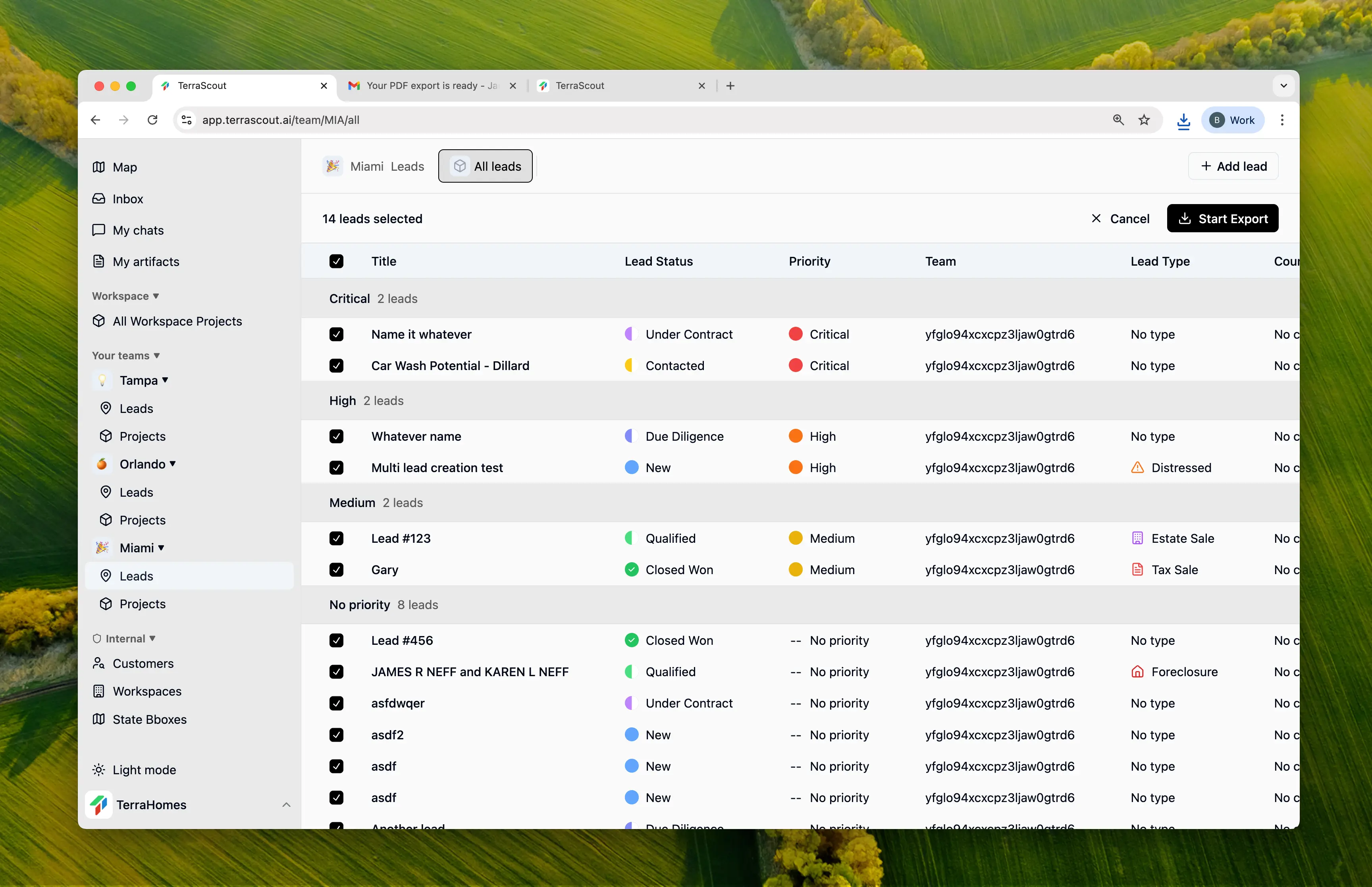
- Go to your leads list
- Click the Export button
- Select the leads you want to export (checkboxes appear)
- Click Start Export
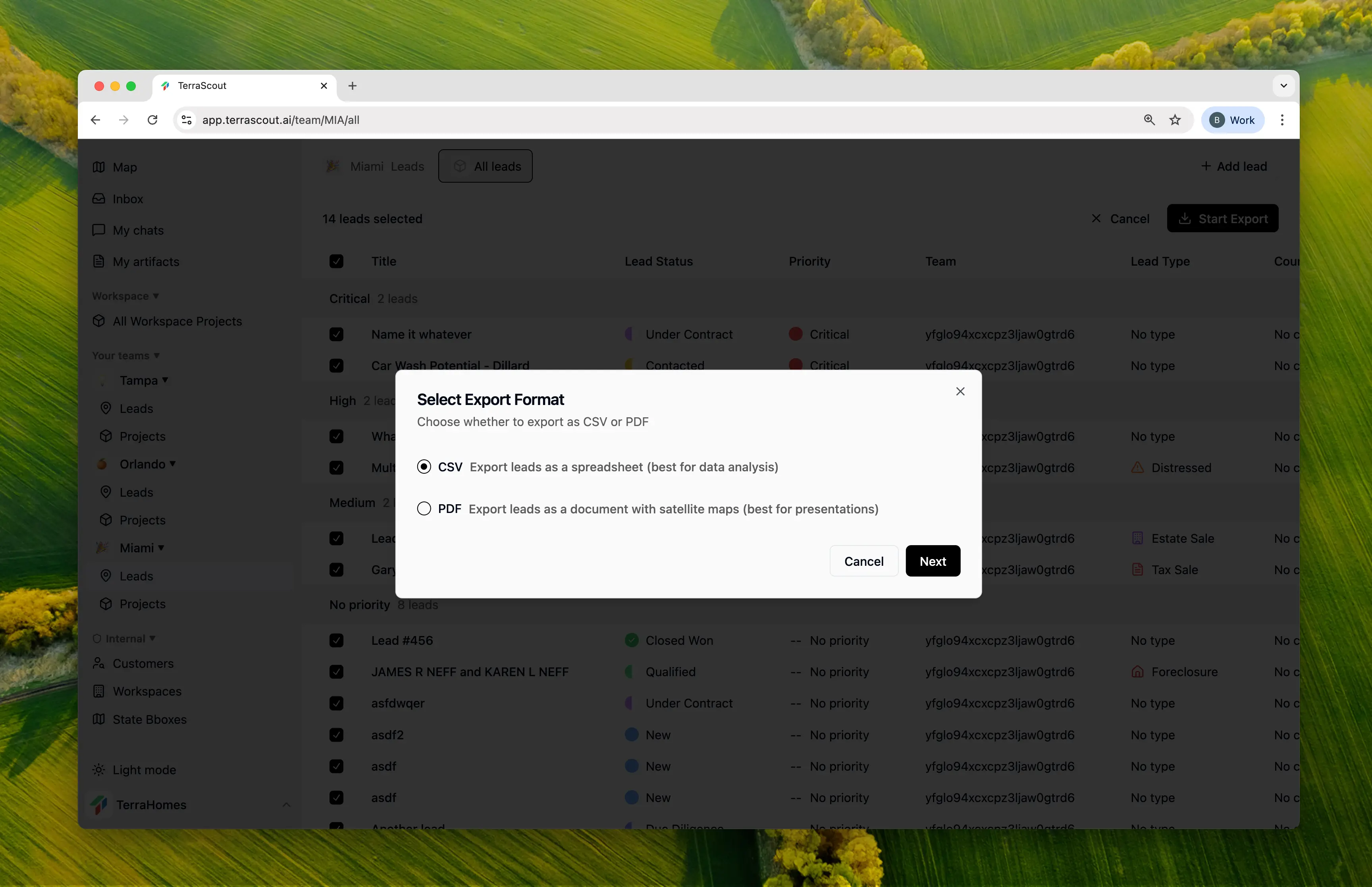
- Follow the export wizard
Export Formats
CSV Export
CSV exports are perfect for:- Importing into spreadsheets (Excel, Google Sheets)
- Data analysis and reporting
- Sharing raw data with partners
- CRM integrations
PDF Export
PDF exports create professional reports with:- Branded cover page with export name and date
- One page per lead with all details
- Satellite maps showing parcel locations
- Color-coded parcel outlines for multi-parcel leads
- Lead descriptions and notes
- Sharing with investors or partners
- Printing for meetings
- Creating deal packages
- Archiving completed deals
Export Wizard
Parcel Data
Choose how to include parcel information:
- None - Lead data only, no parcel details
- Summary - Include parcel count and IDs
- Full - Include detailed parcel fields (select which fields)
Select Parcel Fields
If you chose “Full” parcel mode, select which parcel fields to include from 60+ available fields organized by category.
Parcel Fields
When exporting with full parcel data, you can choose from 60+ fields organized by category—things like owner information, property details, valuations, tax data, and more. Pick the fields that matter for your use case. Your selections are saved automatically for future exports.Receiving Your Export
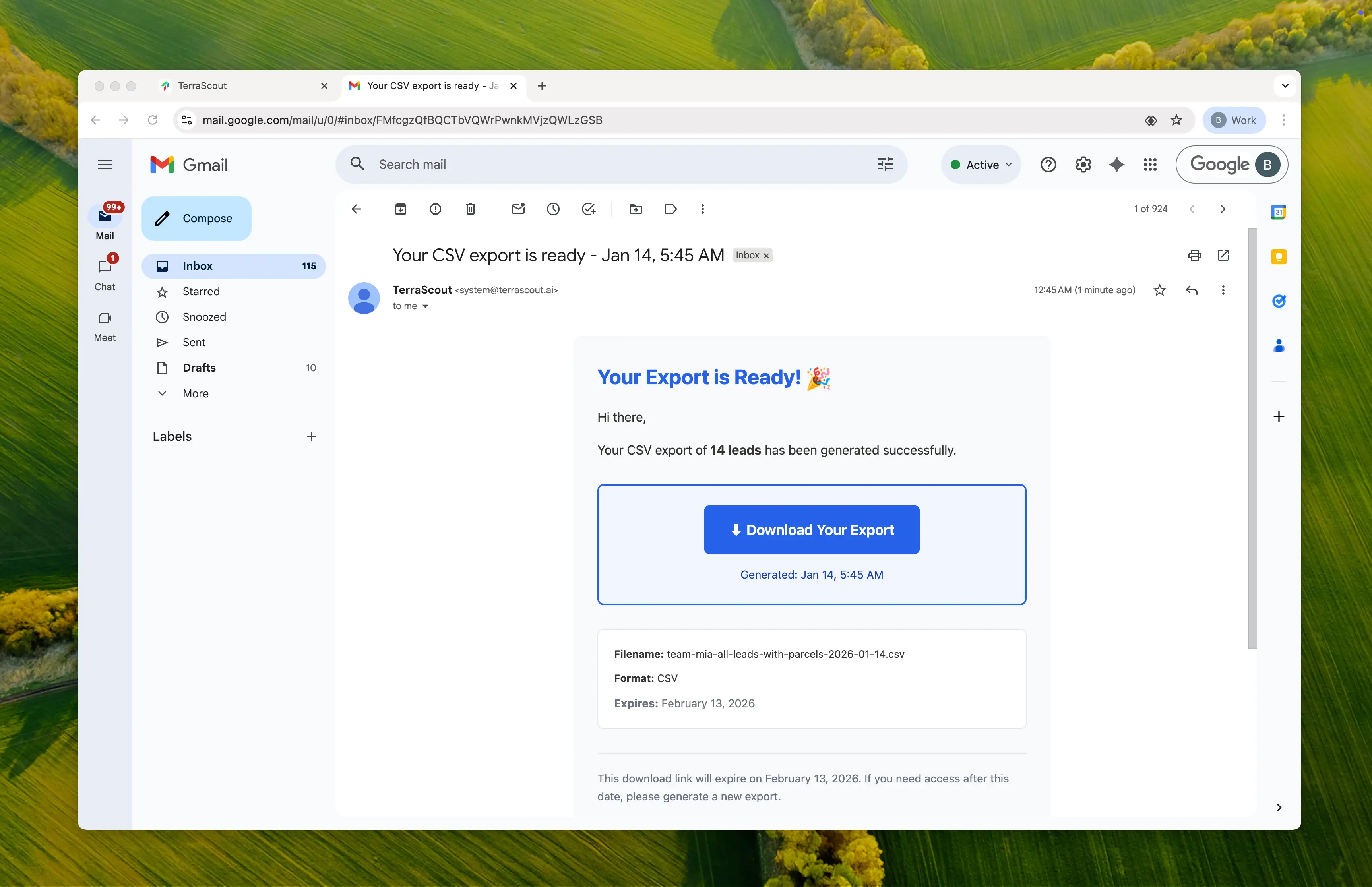
Exports are processed in the background so you can keep working. When your export is ready:- You’ll receive an email notification
- The email contains a download link
- Click the link to download your file
- Links are valid for 30 days
What’s Included
Lead Data
Exports include the columns visible in your current view:- Lead title and ID
- Status, priority, source, type
- Owner type
- Financial fields (asking price, estimated value, offer amount)
- Location (city, county, state)
- Dates (contact, expected close, contract, closing)
- Assigned team member
- Associated project
Parcel Data (Full Mode)
When exporting with full parcel data: CSV Format:- One row per parcel (leads with multiple parcels expand to multiple rows)
- All selected parcel fields as columns
- Satellite map with parcel boundaries
- Multi-parcel leads show combined map with color-coded outlines
- Parcel details table with selected fields
- Each parcel labeled (Parcel 1, Parcel 2, etc.) with matching colors
Tips for Effective Exports
Filter First
Apply filters before exporting to include only the leads you need.
Name Your Exports
Use descriptive names to easily identify exports later.
Save Field Preferences
Your parcel field selections are saved, making repeat exports faster.
Use PDF for Sharing
PDFs create professional reports with maps—great for external stakeholders.
Common Use Cases
| Use Case | Recommended Format | Parcel Mode |
|---|---|---|
| Spreadsheet analysis | CSV | Summary or Full |
| Investor presentation | Full | |
| CRM import | CSV | None or Summary |
| Deal package | Full | |
| Quick backup | CSV | Summary |
| Property research | Full |