> ## Documentation Index
> Fetch the complete documentation index at: https://terrascout.ai/docs/llms.txt
> Use this file to discover all available pages before exploring further.
# Views Overview
> Save your favorite filters for quick access
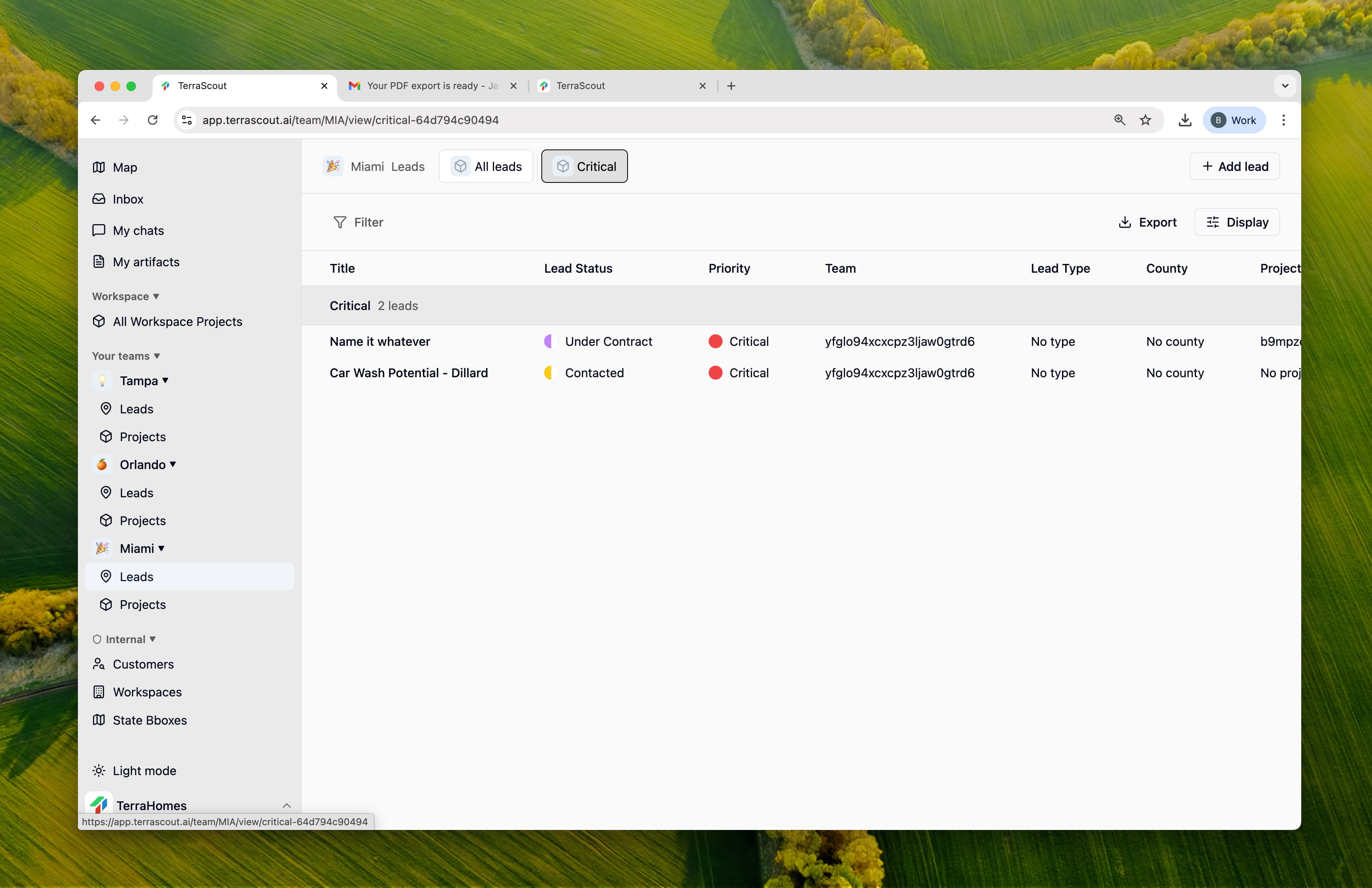 Views save your filters so you don't have to set them up again every time. Create a view once, then access it with one click.
## What Are Views?
Think of views like bookmarks for your leads and projects. Instead of filtering for "high priority leads assigned to me" every morning, save that as a view called "My Hot Leads" and click it whenever you need it.
Each view remembers:
* Which filters you applied
* Which columns you want to see
* How you sorted the list
## Why Use Views?
Stop setting up the same filters over and over. One click gets you back to your list.
Create different views for different tasks—morning review, weekly pipeline check, deals closing soon.
Views you create are available to your whole team, so everyone can use the same lists.
See only what matters right now instead of scrolling through everything.
## Built-in Views
Ploti includes some views by default:
* **All Projects** - Everything in one place
* **All Leads** - Every lead in your team or project
* **Active Leads** - Leads you're still working on
* **Closed Leads** - Completed or lost deals
These can't be deleted, but you can customize how they look.
## Creating Your Own Views
You can create views for anything you check regularly:
| Example View | What It Shows |
| ------------------ | ----------------------------------------- |
| My Hot Leads | High priority leads assigned to you |
| Closing This Month | Deals with expected close dates coming up |
| Florida Properties | Leads filtered to a specific state |
| Needs Follow-up | Leads you haven't contacted recently |
## Getting Started
Use the filter bar to narrow down to the leads or projects you want to see.
Click **Save View** and give it a name you'll remember.
Your new view appears as a tab. Click it anytime to load those filters instantly.
Views save your filters so you don't have to set them up again every time. Create a view once, then access it with one click.
## What Are Views?
Think of views like bookmarks for your leads and projects. Instead of filtering for "high priority leads assigned to me" every morning, save that as a view called "My Hot Leads" and click it whenever you need it.
Each view remembers:
* Which filters you applied
* Which columns you want to see
* How you sorted the list
## Why Use Views?
Stop setting up the same filters over and over. One click gets you back to your list.
Create different views for different tasks—morning review, weekly pipeline check, deals closing soon.
Views you create are available to your whole team, so everyone can use the same lists.
See only what matters right now instead of scrolling through everything.
## Built-in Views
Ploti includes some views by default:
* **All Projects** - Everything in one place
* **All Leads** - Every lead in your team or project
* **Active Leads** - Leads you're still working on
* **Closed Leads** - Completed or lost deals
These can't be deleted, but you can customize how they look.
## Creating Your Own Views
You can create views for anything you check regularly:
| Example View | What It Shows |
| ------------------ | ----------------------------------------- |
| My Hot Leads | High priority leads assigned to you |
| Closing This Month | Deals with expected close dates coming up |
| Florida Properties | Leads filtered to a specific state |
| Needs Follow-up | Leads you haven't contacted recently |
## Getting Started
Use the filter bar to narrow down to the leads or projects you want to see.
Click **Save View** and give it a name you'll remember.
Your new view appears as a tab. Click it anytime to load those filters instantly.