> ## Documentation Index
> Fetch the complete documentation index at: https://terrascout.ai/docs/llms.txt
> Use this file to discover all available pages before exploring further.
# Managing Views
> Edit and organize your saved views
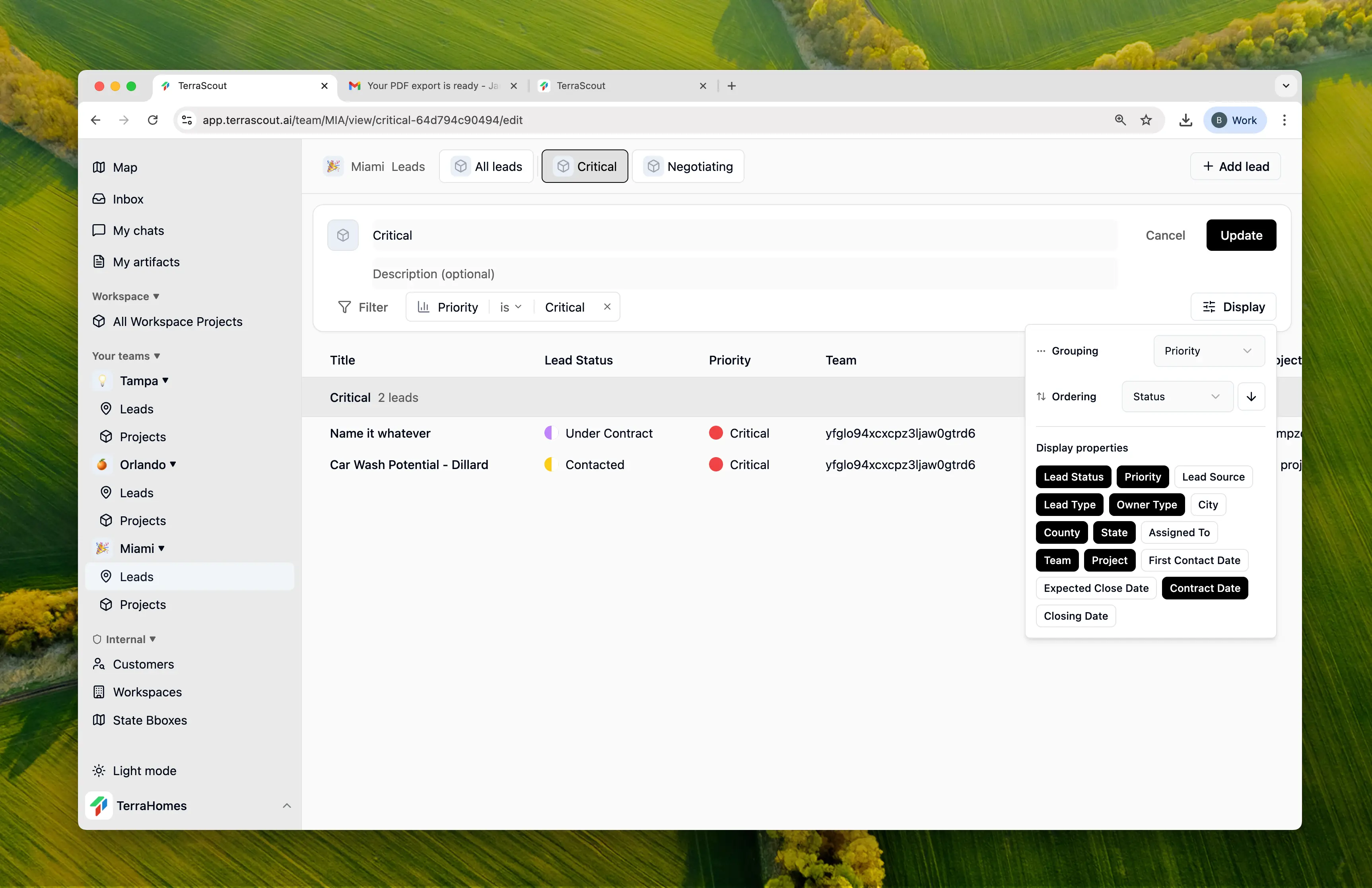 Keep your views organized—edit them when things change, delete ones you don't use anymore.
## Editing a View
Need to change a view's filters or rename it?
1. Go to the view you want to edit
2. Click the **Edit** button
3. Make your changes
4. Click **Save**
You can update the name, filters, icon, and color anytime.
## Deleting a View
To remove a view you no longer need:
1. Right-click the view tab
2. Select **Delete**
3. Confirm
Deleted views can't be recovered. Make sure you don't need it before deleting.
**Note:** Built-in views like "All Leads" can't be deleted—they're always available.
## Switching Between Views
Your views appear as tabs. Click any tab to switch to that view instantly.
Built-in views appear first, followed by your custom views.
## Tips
Delete views you don't use. Too many tabs gets cluttered.
If a view name is confusing, edit it to be clearer.
When your workflow changes, edit existing views instead of creating new ones.
Admins can set default display settings so new team members start with a good setup.
## Common Questions
**View showing wrong data?**
Check the filters—they might be too narrow or filtering out what you're looking for.
**Can't find a view?**
Views are tied to where you created them. A view made in a specific project won't appear at the team level.
**Changes not saving?**
Display settings save automatically. For filter changes, make sure you click Save.
Keep your views organized—edit them when things change, delete ones you don't use anymore.
## Editing a View
Need to change a view's filters or rename it?
1. Go to the view you want to edit
2. Click the **Edit** button
3. Make your changes
4. Click **Save**
You can update the name, filters, icon, and color anytime.
## Deleting a View
To remove a view you no longer need:
1. Right-click the view tab
2. Select **Delete**
3. Confirm
Deleted views can't be recovered. Make sure you don't need it before deleting.
**Note:** Built-in views like "All Leads" can't be deleted—they're always available.
## Switching Between Views
Your views appear as tabs. Click any tab to switch to that view instantly.
Built-in views appear first, followed by your custom views.
## Tips
Delete views you don't use. Too many tabs gets cluttered.
If a view name is confusing, edit it to be clearer.
When your workflow changes, edit existing views instead of creating new ones.
Admins can set default display settings so new team members start with a good setup.
## Common Questions
**View showing wrong data?**
Check the filters—they might be too narrow or filtering out what you're looking for.
**Can't find a view?**
Views are tied to where you created them. A view made in a specific project won't appear at the team level.
**Changes not saving?**
Display settings save automatically. For filter changes, make sure you click Save.