> ## Documentation Index
> Fetch the complete documentation index at: https://terrascout.ai/docs/llms.txt
> Use this file to discover all available pages before exploring further.
# Display Settings
> Choose what columns and sorting you see
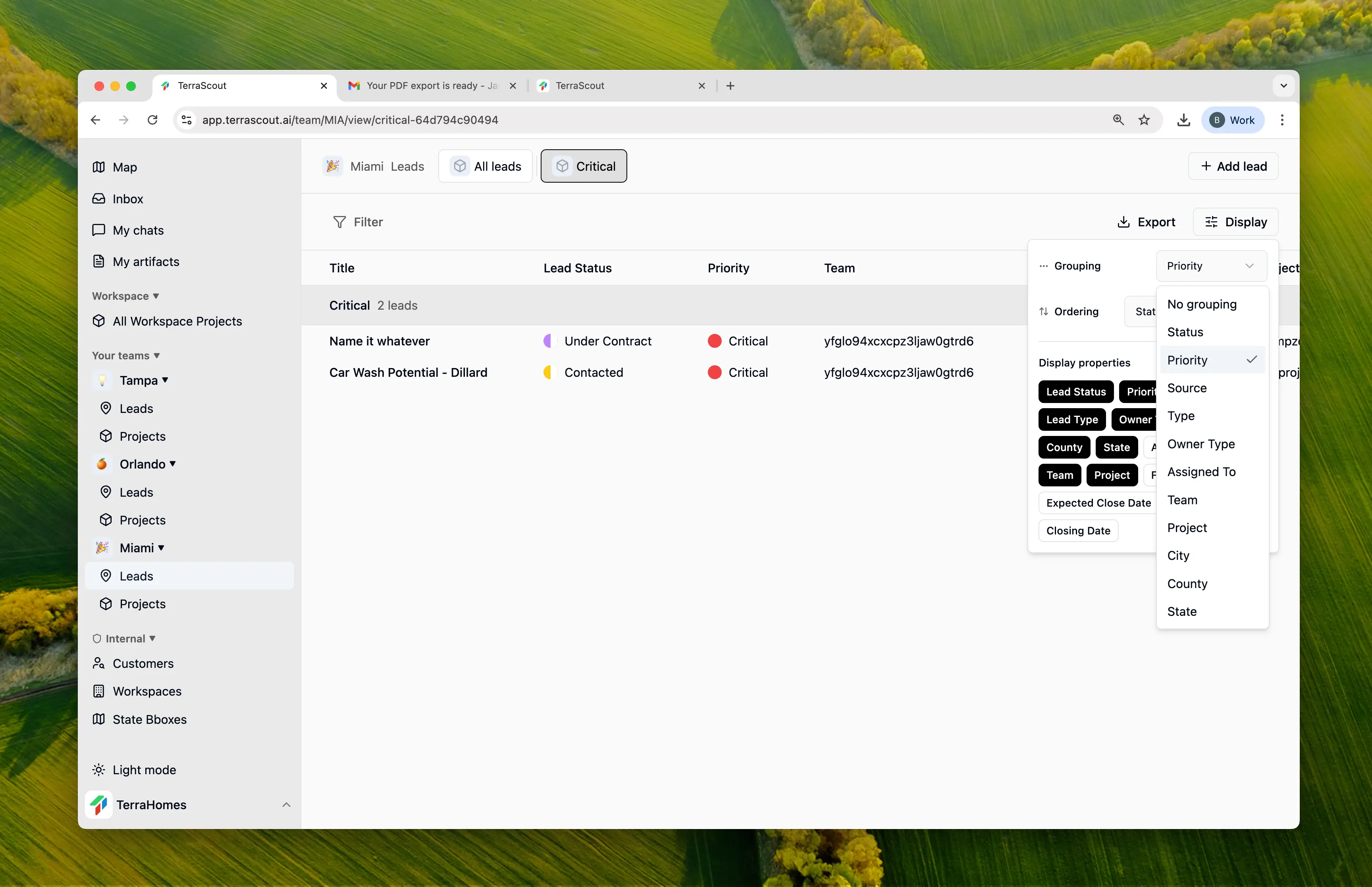 Display settings let you customize what you see in each view—which columns appear, how things are grouped, and the sort order.
## Changing Display Settings
1. Open any view
2. Click the **Display** button
3. Make your changes
4. Settings save automatically
## What You Can Customize
### Columns
Show or hide columns to focus on what matters for that view. For example:
* A "Financial Review" view might show price columns
* A "Daily Checkin" view might focus on status and last activity
* A "Pipeline" view might show expected close dates
### Grouping
Group your records to see them organized by category:
* **By Status** - See leads at each stage of your pipeline
* **By Priority** - High priority items together
* **By Assigned To** - Who's working on what
Or choose no grouping for a simple flat list.
### Sorting
Control the order records appear:
* **By Priority** - Most important at top
* **By Date** - Newest or oldest first
* **By Name** - Alphabetical order
* **By Last Activity** - Recently updated first
## Your Settings vs Team Defaults
Your display preferences are personal—changing them won't affect your teammates. Everyone can set up each view the way they like.
**For Admins:** You can set default display settings for your team:
1. Set up the display how you want it
2. Click **Set as default for everyone**
3. New team members will start with these settings
Anyone can still customize their own view, but this gives everyone a good starting point.
## Tips
Hide columns you don't need. A cleaner table is easier to scan.
Grouping by status turns any view into a quick pipeline overview.
Each view can have its own display settings. Customize each one for its purpose.
Put the most important items at the top by sorting by priority or date.
Display settings let you customize what you see in each view—which columns appear, how things are grouped, and the sort order.
## Changing Display Settings
1. Open any view
2. Click the **Display** button
3. Make your changes
4. Settings save automatically
## What You Can Customize
### Columns
Show or hide columns to focus on what matters for that view. For example:
* A "Financial Review" view might show price columns
* A "Daily Checkin" view might focus on status and last activity
* A "Pipeline" view might show expected close dates
### Grouping
Group your records to see them organized by category:
* **By Status** - See leads at each stage of your pipeline
* **By Priority** - High priority items together
* **By Assigned To** - Who's working on what
Or choose no grouping for a simple flat list.
### Sorting
Control the order records appear:
* **By Priority** - Most important at top
* **By Date** - Newest or oldest first
* **By Name** - Alphabetical order
* **By Last Activity** - Recently updated first
## Your Settings vs Team Defaults
Your display preferences are personal—changing them won't affect your teammates. Everyone can set up each view the way they like.
**For Admins:** You can set default display settings for your team:
1. Set up the display how you want it
2. Click **Set as default for everyone**
3. New team members will start with these settings
Anyone can still customize their own view, but this gives everyone a good starting point.
## Tips
Hide columns you don't need. A cleaner table is easier to scan.
Grouping by status turns any view into a quick pipeline overview.
Each view can have its own display settings. Customize each one for its purpose.
Put the most important items at the top by sorting by priority or date.