> ## Documentation Index
> Fetch the complete documentation index at: https://terrascout.ai/docs/llms.txt
> Use this file to discover all available pages before exploring further.
# Create a research request
> Give Ploti the goal, geography, documents, and sources needed for strong real estate research
# Write the research brief
Open **Research requests** and choose **Create research request**. The intake keeps the request, supporting files, and outside sources together from the beginning.
## Step 1: Describe the goal
Answer four questions in the brief:
1. **What decision are you making?** Site selection, acquisition, underwriting, market entry, entitlement, outreach, or another goal.
2. **Where should Ploti research?** Name a market, jurisdiction, corridor, address, portfolio, or other study area.
3. **What criteria matter?** Include thresholds, exclusions, rankings, and definitions that could change the result.
4. **What should the deliverable contain?** Ask for a map, comparison table, ranked list, memo, cited ordinance answer, file, or a combination.
### Example
```text theme={null}
Identify promising sites for a new urgent care clinic in northern Wake County,
North Carolina. Compare population growth, nearby competitors, drive-time
coverage, access, and available parcels. Exclude sites with obvious flood or
wetland conflicts. Return a ranked table, a map of the candidates and relevant
supporting layers, and a short memo explaining the top five.
```
State how Ploti should handle uncertainty. For example: preserve missing
values, distinguish facts from assumptions, and cite regulatory conclusions.
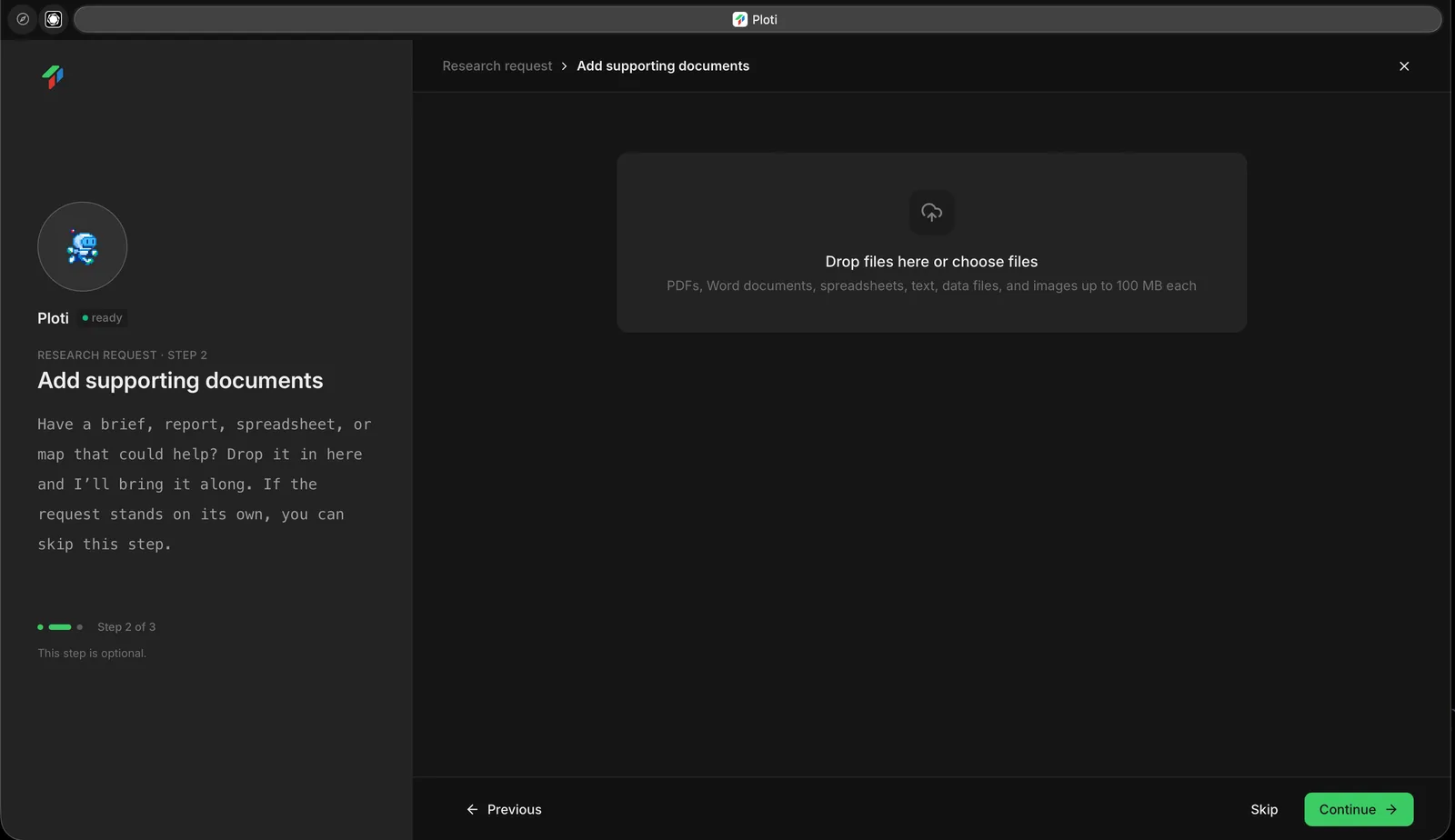
## Step 2: Add documents
Attach any material that defines the assignment or improves the evidence:
* Client or investment briefs
* Offering memoranda and site packages
* PDFs and Word documents
* Spreadsheets, CSVs, JSON, or GeoJSON
* Maps, screenshots, and images
Files can be up to 100 MB each. This step is optional.
 ## Step 3: Add outside sources
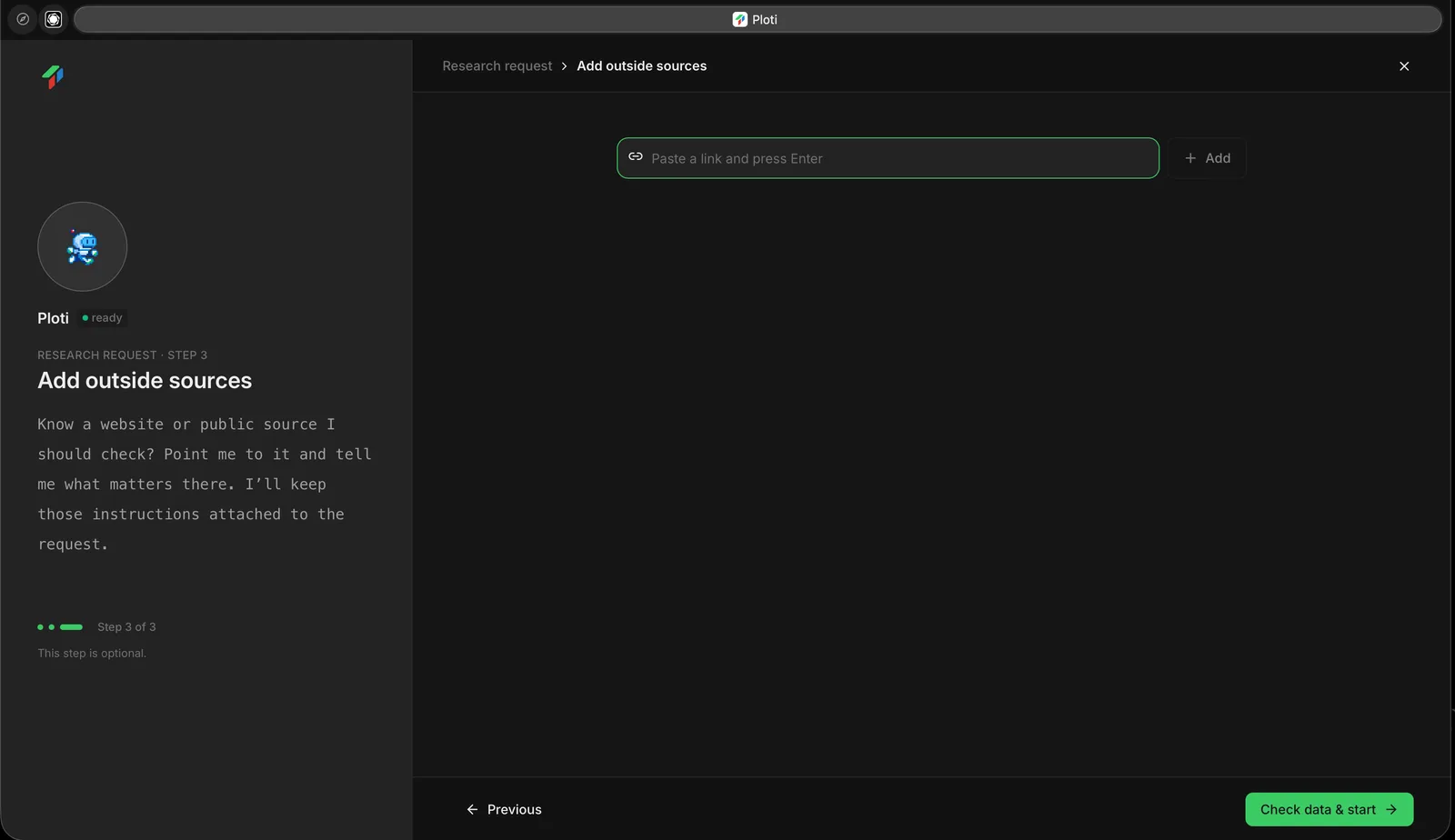
Add public web addresses Ploti should inspect. For each URL, include a note explaining what matters—for example, a planning department page, an ordinance library, a utility service map, or a portfolio page.
This step is also optional. Ploti can still locate relevant public sources during the research.
## Step 3: Add outside sources
Add public web addresses Ploti should inspect. For each URL, include a note explaining what matters—for example, a planning department page, an ordinance library, a utility service map, or a portfolio page.
This step is also optional. Ploti can still locate relevant public sources during the research.
 ## Submit and leave it running
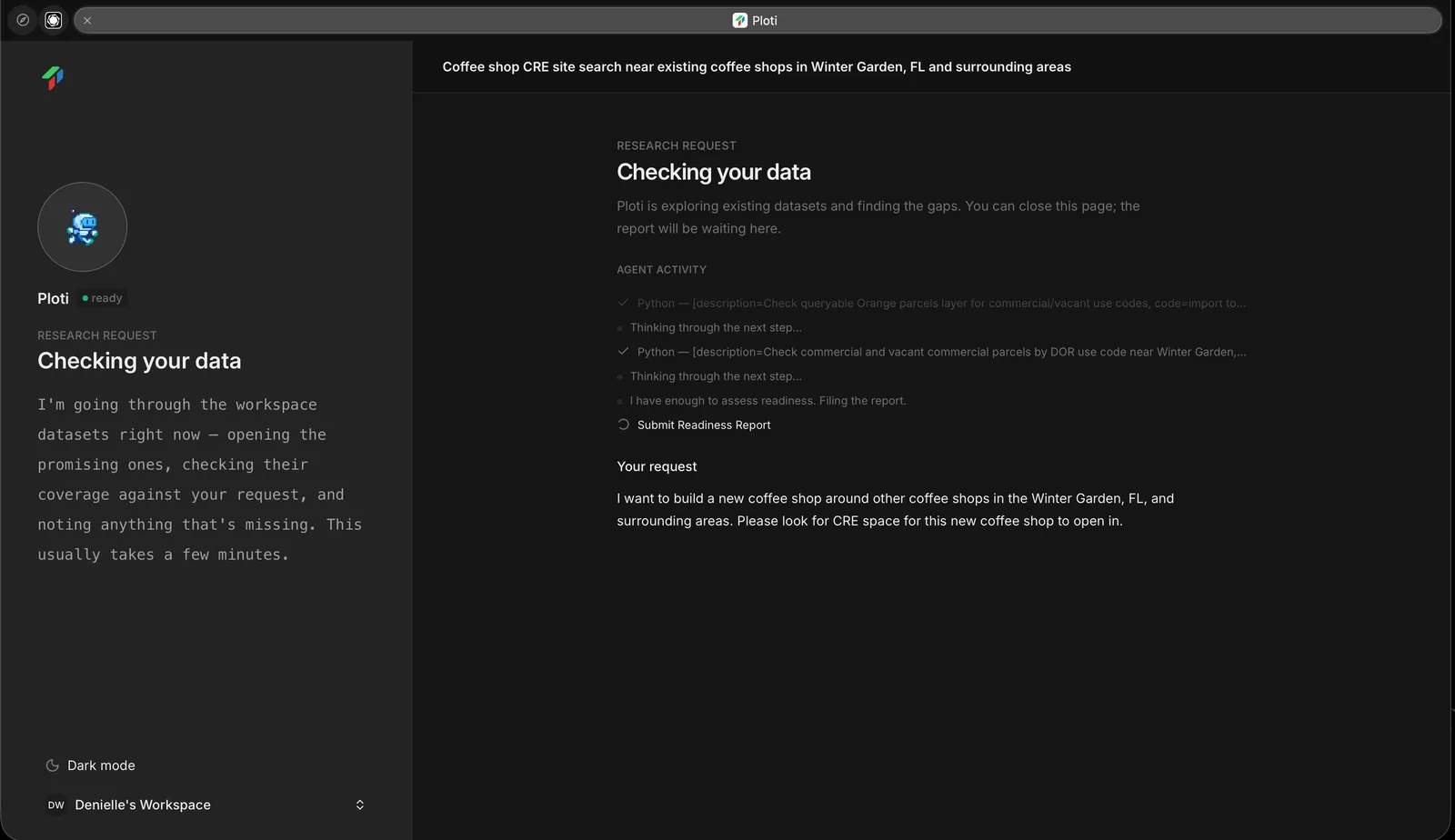
After submission, Ploti creates a request page and begins the data-readiness check. The work is attached to the request, so you can safely close the page and return from **Research requests**.
## Submit and leave it running
After submission, Ploti creates a request page and begins the data-readiness check. The work is attached to the request, so you can safely close the page and return from **Research requests**.
 ## Next step
Learn how Ploti evaluates available data and handles gaps.
## Next step
Learn how Ploti evaluates available data and handles gaps.