> ## Documentation Index
> Fetch the complete documentation index at: https://terrascout.ai/docs/llms.txt
> Use this file to discover all available pages before exploring further.
# Managing Leads
> Add and manage leads within your projects
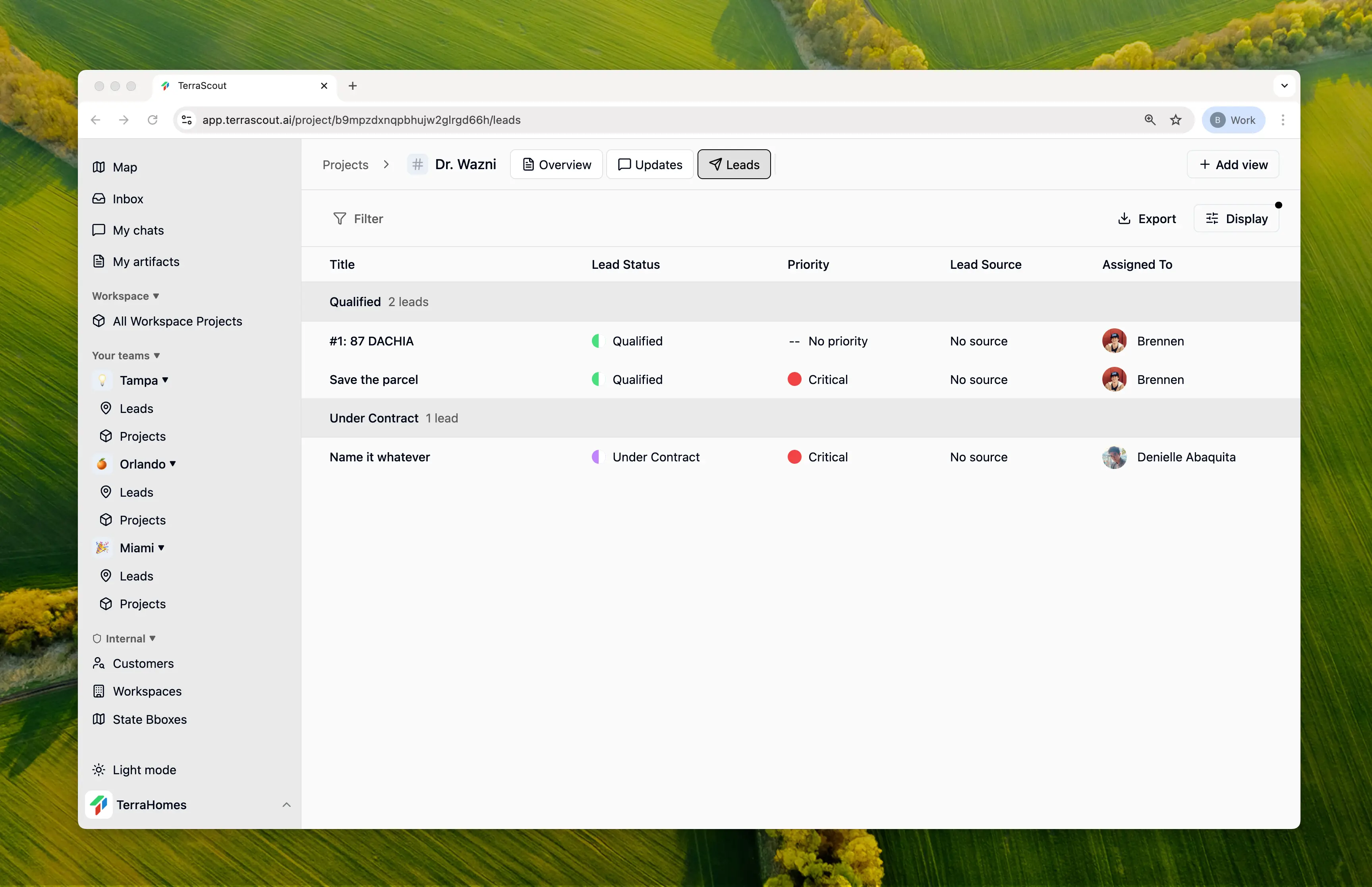 The primary purpose of projects is to organize and manage leads. Each project serves as a container for related leads, making it easy to track opportunities across your land acquisition pipeline.
## Understanding Leads in Projects
A **lead** represents a potential land acquisition opportunity. Leads can contain:
* One or more parcels/properties
* Owner and contact information
* Financial details (asking price, estimated value, offer amount)
* Status and priority tracking
* Notes, comments, and activity history
When you associate a lead with a project, it becomes part of that project's pipeline and can be managed alongside other related opportunities.
## Adding Leads to a Project
There are several ways to add leads to a project:
### From the Map
1. Select a parcel on the map
2. Click **Create Lead**
3. Choose the project to associate it with during creation
### From an Existing Lead
1. Open the lead details
2. Find the **Project** field
3. Select the project to associate it with
### From the Project View
1. Navigate to your project
2. Go to the **Leads** tab
3. Create a new lead directly within the project context
## What's in a Lead
Each lead tracks:
* **Basic info** — Title, description, type, and source
* **Status & Priority** — Where it is in your pipeline
* **Financials** — Asking price, your valuation, offer amount
* **Owner details** — Owner type and contact info
* **Key dates** — First contact, expected close
* **Properties** — One or more parcels from the map
## Managing Leads Within a Project
### Viewing All Project Leads
Navigate to your project and click the **Leads** tab to see all associated leads. This view:
* Shows only leads belonging to this project
* Supports all standard filtering options
* Allows custom column configurations
* Enables bulk actions on multiple leads
### Filtering Project Leads
Filter your project's leads by:
* **Status** - Find leads at specific pipeline stages
* **Priority** - Focus on high-priority opportunities
* **Assigned To** - See leads assigned to specific team members
* **Type** - Filter by lead type
* **Dates** - Find leads by contact or expected close dates
### Lead Assignment
Assign leads to team members for accountability:
1. Open the lead
2. Set the **Assigned To** field
3. The assigned member receives notifications for lead activity
## Collaboration
### Comments & Discussions
Add comments to leads to:
* Document conversations with owners
* Share research findings
* Coordinate with team members
* Create threaded discussions on specific topics
### Subscriptions
Team members can subscribe to leads to receive notifications about:
* Status changes
* New comments
* Assignment changes
* Any field updates
The lead creator and assigned member are automatically subscribed.
## Activity Tracking
Every action on a lead is tracked:
* Status and priority changes
* Assignment updates
* Parcel additions/removals
* Financial field changes
* Comments and discussions
This creates a complete audit trail for each opportunity.
## Custom Views
Create custom views within your project to:
* Save frequently-used filter combinations
* Set up views for different team roles
* Track specific pipeline stages
* Monitor leads needing attention
## Best Practices
Regularly update lead status as opportunities progress through your pipeline.
Use comments to document conversations and decisions for team visibility.
Assign every lead to a team member so nothing falls through the cracks.
Set priorities to help your team focus on the most promising opportunities.
The primary purpose of projects is to organize and manage leads. Each project serves as a container for related leads, making it easy to track opportunities across your land acquisition pipeline.
## Understanding Leads in Projects
A **lead** represents a potential land acquisition opportunity. Leads can contain:
* One or more parcels/properties
* Owner and contact information
* Financial details (asking price, estimated value, offer amount)
* Status and priority tracking
* Notes, comments, and activity history
When you associate a lead with a project, it becomes part of that project's pipeline and can be managed alongside other related opportunities.
## Adding Leads to a Project
There are several ways to add leads to a project:
### From the Map
1. Select a parcel on the map
2. Click **Create Lead**
3. Choose the project to associate it with during creation
### From an Existing Lead
1. Open the lead details
2. Find the **Project** field
3. Select the project to associate it with
### From the Project View
1. Navigate to your project
2. Go to the **Leads** tab
3. Create a new lead directly within the project context
## What's in a Lead
Each lead tracks:
* **Basic info** — Title, description, type, and source
* **Status & Priority** — Where it is in your pipeline
* **Financials** — Asking price, your valuation, offer amount
* **Owner details** — Owner type and contact info
* **Key dates** — First contact, expected close
* **Properties** — One or more parcels from the map
## Managing Leads Within a Project
### Viewing All Project Leads
Navigate to your project and click the **Leads** tab to see all associated leads. This view:
* Shows only leads belonging to this project
* Supports all standard filtering options
* Allows custom column configurations
* Enables bulk actions on multiple leads
### Filtering Project Leads
Filter your project's leads by:
* **Status** - Find leads at specific pipeline stages
* **Priority** - Focus on high-priority opportunities
* **Assigned To** - See leads assigned to specific team members
* **Type** - Filter by lead type
* **Dates** - Find leads by contact or expected close dates
### Lead Assignment
Assign leads to team members for accountability:
1. Open the lead
2. Set the **Assigned To** field
3. The assigned member receives notifications for lead activity
## Collaboration
### Comments & Discussions
Add comments to leads to:
* Document conversations with owners
* Share research findings
* Coordinate with team members
* Create threaded discussions on specific topics
### Subscriptions
Team members can subscribe to leads to receive notifications about:
* Status changes
* New comments
* Assignment changes
* Any field updates
The lead creator and assigned member are automatically subscribed.
## Activity Tracking
Every action on a lead is tracked:
* Status and priority changes
* Assignment updates
* Parcel additions/removals
* Financial field changes
* Comments and discussions
This creates a complete audit trail for each opportunity.
## Custom Views
Create custom views within your project to:
* Save frequently-used filter combinations
* Set up views for different team roles
* Track specific pipeline stages
* Monitor leads needing attention
## Best Practices
Regularly update lead status as opportunities progress through your pipeline.
Use comments to document conversations and decisions for team visibility.
Assign every lead to a team member so nothing falls through the cracks.
Set priorities to help your team focus on the most promising opportunities.