> ## Documentation Index
> Fetch the complete documentation index at: https://terrascout.ai/docs/llms.txt
> Use this file to discover all available pages before exploring further.
# Filtering Projects
> Filter and organize your projects
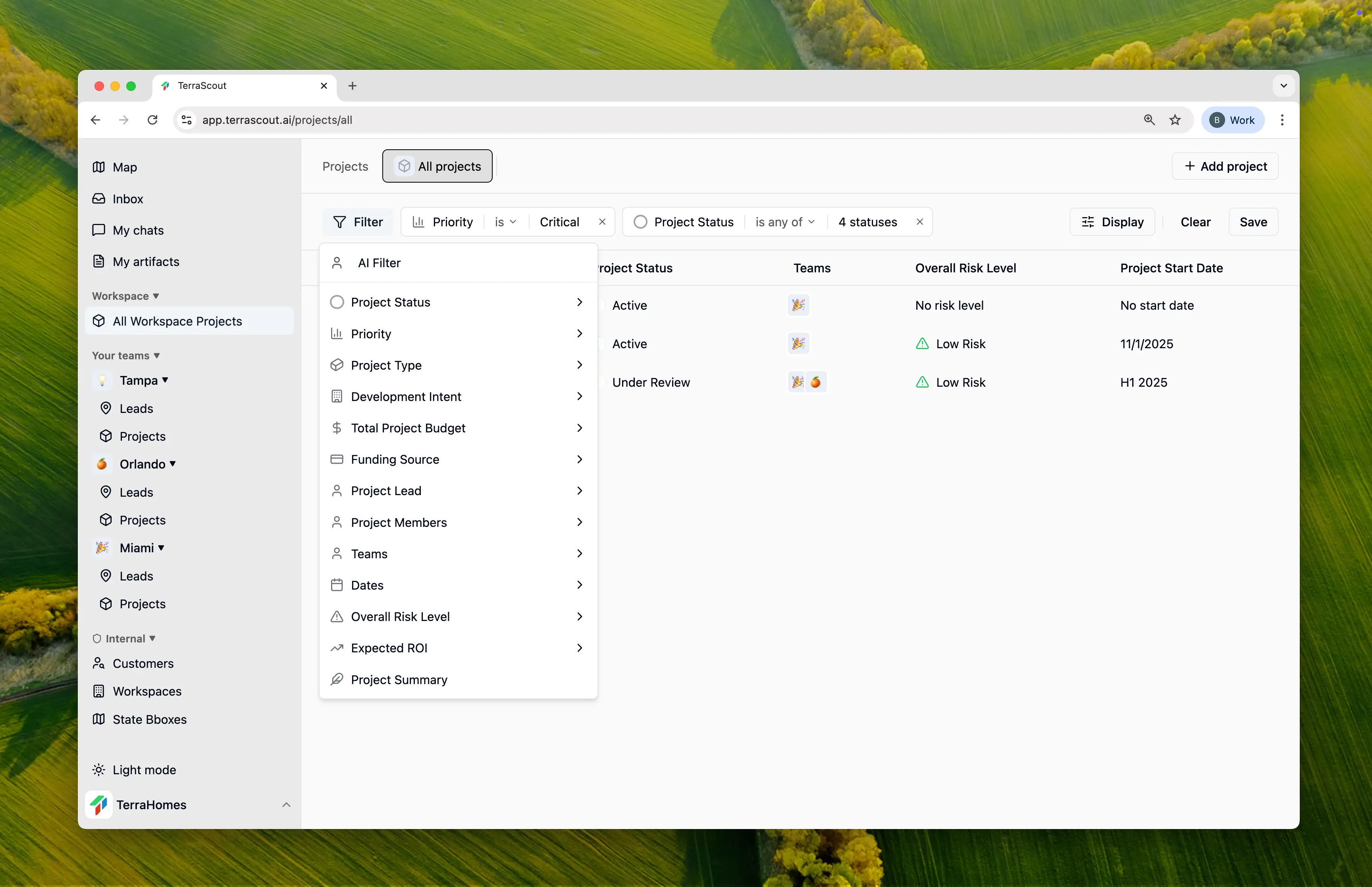 Ploti's powerful filtering system helps you find exactly the projects you need, whether you're managing a handful or hundreds of projects.
## Adding Filters
Click the **Filter** button to open the filter menu. You can add multiple filters that work together to narrow down your project list.
## What You Can Filter By
* **Status & Priority** — Find projects at specific stages or priority levels
* **Risk Level** — Filter by risk assessment
* **Project Type** — Residential, Commercial, Industrial, etc.
* **Budget & Funding** — Filter by budget range or funding source
* **People** — Project lead, team members, or teams
* **Dates** — Start date or target completion
* **Search** — Find projects by title
## Combining Filters
When you add multiple filters:
* Filters are combined with **AND** logic
* All conditions must be met for a project to appear
* Within a single filter, multiple values use **OR** logic
**Example:** Filtering for `Status is Active` AND `Priority is any of High, Medium` shows all active projects that are either high or medium priority.
## Grouping Projects
Beyond filtering, you can group your project list by:
* **Status** - See projects organized by their current status
* **Priority** - Group by priority level
* **Lead** - Group by assigned project lead
* **No Grouping** - Flat list view
## Sorting
Sort your filtered results by:
* Any filterable field
* Ascending or descending order
* Default: Most recently updated first
## Saving Views
Your filter, grouping, and sort preferences are saved per view, so you can quickly return to your preferred project organization.
## Tips for Effective Filtering
Begin with one or two filters and add more as needed to narrow results.
Combine filtering with grouping to see patterns across your projects.
Filter by "At Risk" or "Off Track" status for projects needing attention.
Filter by team to see only projects relevant to specific groups.
Ploti's powerful filtering system helps you find exactly the projects you need, whether you're managing a handful or hundreds of projects.
## Adding Filters
Click the **Filter** button to open the filter menu. You can add multiple filters that work together to narrow down your project list.
## What You Can Filter By
* **Status & Priority** — Find projects at specific stages or priority levels
* **Risk Level** — Filter by risk assessment
* **Project Type** — Residential, Commercial, Industrial, etc.
* **Budget & Funding** — Filter by budget range or funding source
* **People** — Project lead, team members, or teams
* **Dates** — Start date or target completion
* **Search** — Find projects by title
## Combining Filters
When you add multiple filters:
* Filters are combined with **AND** logic
* All conditions must be met for a project to appear
* Within a single filter, multiple values use **OR** logic
**Example:** Filtering for `Status is Active` AND `Priority is any of High, Medium` shows all active projects that are either high or medium priority.
## Grouping Projects
Beyond filtering, you can group your project list by:
* **Status** - See projects organized by their current status
* **Priority** - Group by priority level
* **Lead** - Group by assigned project lead
* **No Grouping** - Flat list view
## Sorting
Sort your filtered results by:
* Any filterable field
* Ascending or descending order
* Default: Most recently updated first
## Saving Views
Your filter, grouping, and sort preferences are saved per view, so you can quickly return to your preferred project organization.
## Tips for Effective Filtering
Begin with one or two filters and add more as needed to narrow results.
Combine filtering with grouping to see patterns across your projects.
Filter by "At Risk" or "Off Track" status for projects needing attention.
Filter by team to see only projects relevant to specific groups.