> ## Documentation Index
> Fetch the complete documentation index at: https://terrascout.ai/docs/llms.txt
> Use this file to discover all available pages before exploring further.
# Tools and outputs
> Understand the Ploti MCP tool surface, sessions, and interactive results
# Tools and outputs
Ploti exposes a small, stable set of MCP tools. The assistant handles their sequence; users usually work in plain language and do not call tools by name.
Every tool has a human-readable title, a focused input schema, and safety annotations that tell the host whether the call reads data, changes session state, reaches an external system, or can modify sandbox files.
## Tool reference
| Tool | What it does | Effect |
| ---------------- | ----------------------------------------------------------------------------- | ------------------------------------------------ |
| `start_session` | Opens a Ploti work session and optionally sets the starting place | Creates session state |
| `get_session` | Lists open sessions or reports the current viewport and sandbox state | Read only |
| `navigate` | Moves the session viewport to a place or coordinate | Changes session state |
| `end_session` | Closes a session and stops its sandbox | Changes session state |
| `read_guide` | Reads Ploti's task and Python API guidance | Read only |
| `list_layers` | Lists data available in the current viewport, with optional paging and search | Read only |
| `execute_python` | Runs analysis code in the isolated Ploti sandbox | Can create or modify session artifacts and files |
| `execute_bash` | Performs sandbox file operations or runs saved scripts | Can create, modify, or delete sandbox files |
| `get_result` | Checks a background analysis job | Read only |
| `list_outputs` | Lists saved checkpoints, tables, queries, filters, and files | Read only |
| `show_output` | Returns a bounded preview and an interactive map or table | Read only |
| `get_file` | Returns a workspace-authenticated download link for a saved file | Read only |
## Sessions and boundaries
Each MCP session belongs to one Ploti workspace and one authenticated connection. A session begins with a place or viewport, and all data queries are constrained to that current view. The assistant can navigate again when a task moves to another place.
Sessions expire after one hour without activity. Each tool call extends the idle window. The associated compute sandbox also stops when idle; durable outputs saved to the workspace remain available after the sandbox stops.
## Long-running analysis
Quick Python calls return in the same tool response. Work that runs beyond the short synchronous window is automatically promoted to a background job, and an assistant can poll `get_result`. A background execution can run for up to 15 minutes, and its recorded result remains available for one hour.
Ploti serializes code executions within one session so two analyses do not mutate the same working files at the same time.
## Interactive outputs
`show_output` always returns a concise text preview and a Ploti link. Compatible hosts can also render interactive map or table panels, depending on the saved output. A map and its comparison table can appear as separate outputs in the conversation. The assistant can page or narrow the model-facing preview instead of putting an entire dataset into conversation context.
Use **Filter rows** to find entries in a table, **Export CSV** to download the result, or **Open in Ploti** to continue reviewing it in your workspace.
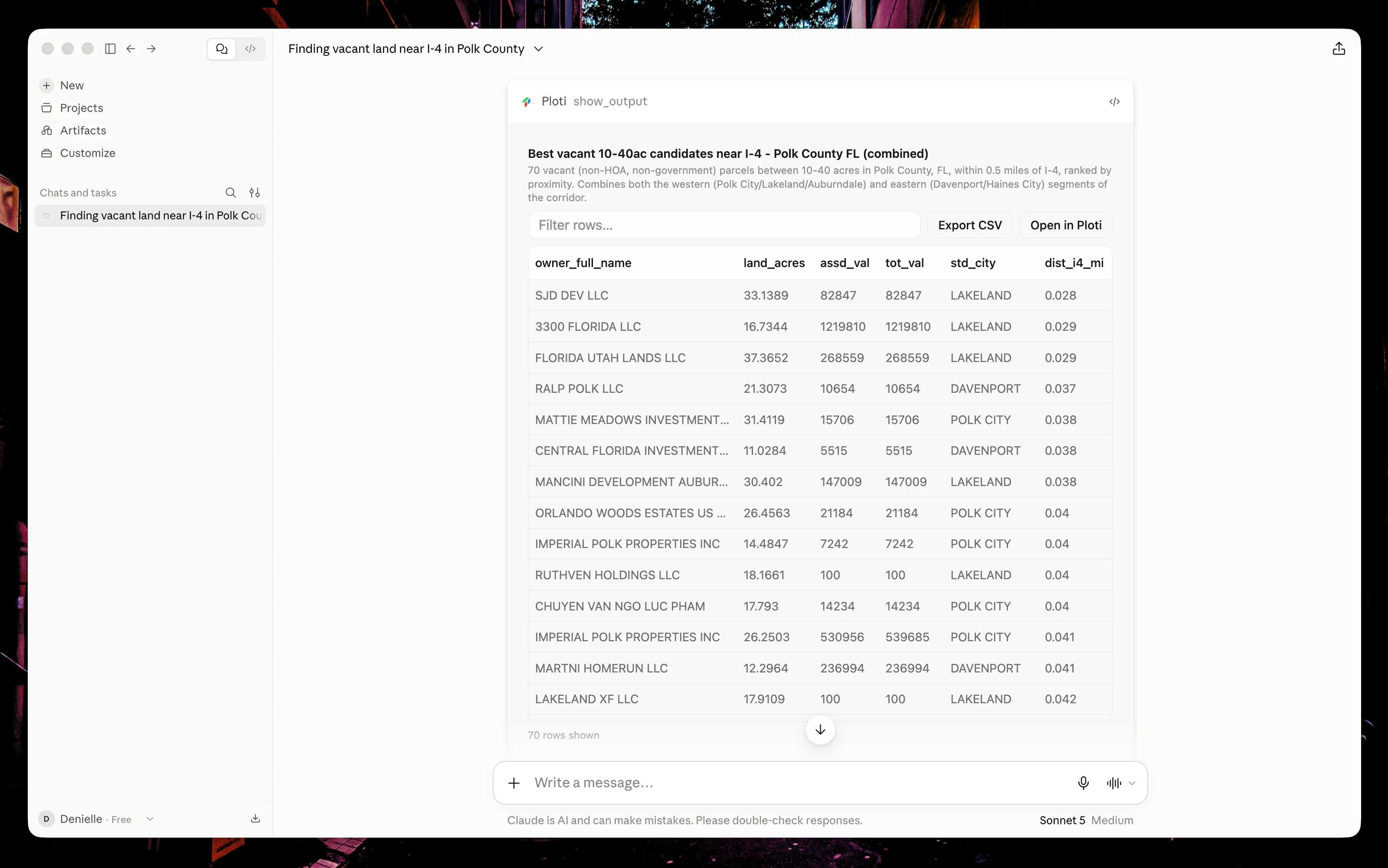 If a host does not support interactive MCP UI, the text preview, download links, and **Open in Ploti** link still work.
## Durable work
The assistant can save:
* **Checkpoints** — fixed sets of entities that can be reviewed on a map or in a table
* **Materialized tables** — analysis results stored as rows and columns
* **Saved queries** — live queries that rerun when viewed
* **Filters** — live layers on the Ploti map
* **Files** — workspace files with authenticated download links
Outputs are private to the workspace unless an authorized user chooses to share them. See [Security and privacy](/docs/mcp/security-and-privacy) for access and retention details.
If a host does not support interactive MCP UI, the text preview, download links, and **Open in Ploti** link still work.
## Durable work
The assistant can save:
* **Checkpoints** — fixed sets of entities that can be reviewed on a map or in a table
* **Materialized tables** — analysis results stored as rows and columns
* **Saved queries** — live queries that rerun when viewed
* **Filters** — live layers on the Ploti map
* **Files** — workspace files with authenticated download links
Outputs are private to the workspace unless an authorized user chooses to share them. See [Security and privacy](/docs/mcp/security-and-privacy) for access and retention details.