> ## Documentation Index
> Fetch the complete documentation index at: https://terrascout.ai/docs/llms.txt
> Use this file to discover all available pages before exploring further.
# Connect Ploti to Claude
> Add Ploti as a custom connector in Claude on web or desktop
# Connect Ploti to Claude
Connect Ploti once, then bring parcel data, ordinance research, and maps into Claude conversations on web or desktop.
**Before you start:** Your Claude account must allow custom connectors. On Team and Enterprise plans, an owner must first add Ploti as an organization connector. See [Anthropic's custom connector guide](https://support.claude.com/en/articles/11175166-get-started-with-custom-connectors-using-remote-mcp) for current availability.
Open Claude **Settings** and select **Connectors**. On Team and Enterprise plans, an owner first adds Ploti from organization settings; each member then connects their own account.
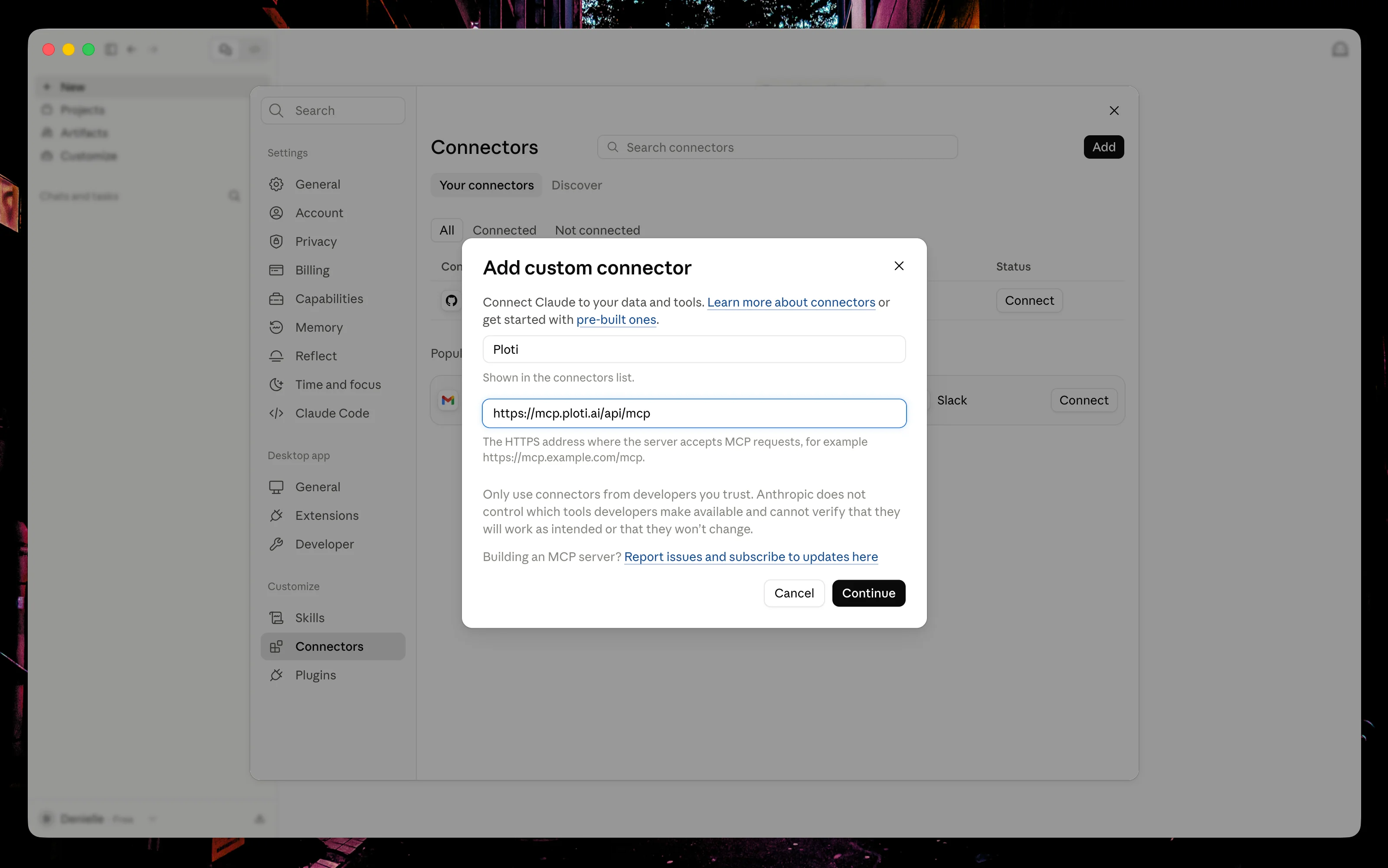
Select **Add**, then **Add custom connector**. Name it `Ploti` and paste the connector URL below. If advanced OAuth fields appear, leave them empty; Ploti configures authentication for you.
```text Connector URL theme={null}
https://mcp.ploti.ai/api/mcp
```
Select **Continue** to add the connector, then select **Connect** if prompted. Complete the Ploti sign-in and authorization in your browser, choosing the workspace you want to use. This works with free and paid Ploti accounts.
Start a new conversation, open the tools menu beside the message box, and make sure Ploti is enabled. Then try: `Use Ploti to find vacant parcels over 10 acres near Tampa, Florida, and show the results on a map.`
 For host-specific details, see [Anthropic's custom connector guide](https://support.claude.com/en/articles/11175166-get-started-with-custom-connectors-using-remote-mcp).
Fix authentication, expired sessions, missing tools, and result display
issues.
For host-specific details, see [Anthropic's custom connector guide](https://support.claude.com/en/articles/11175166-get-started-with-custom-connectors-using-remote-mcp).
Fix authentication, expired sessions, missing tools, and result display
issues.