> ## Documentation Index
> Fetch the complete documentation index at: https://terrascout.ai/docs/llms.txt
> Use this file to discover all available pages before exploring further.
# Lead Pipeline
> Track leads through your acquisition workflow
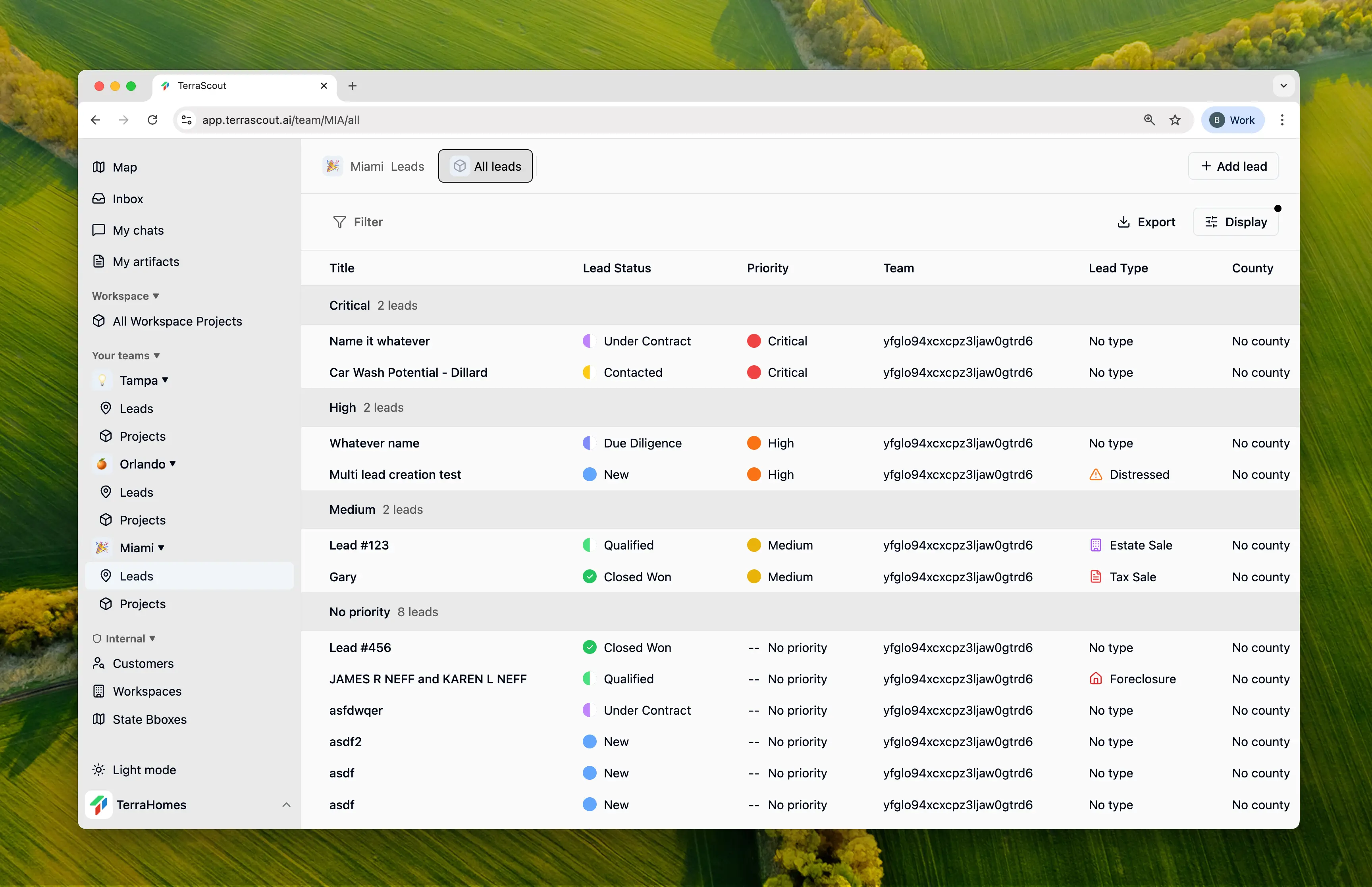 Ploti's lead pipeline helps you track opportunities from initial discovery through closing. Visual status indicators make it easy to see where each deal stands at a glance.
## Pipeline Stages
A freshly created lead. You've identified an opportunity but haven't taken action yet.
You've reached out to the owner or their representative. Waiting for response or in initial discussions.
The opportunity is real and worth pursuing. Owner is interested, property meets criteria.
Active discussions on terms. Working toward agreement on price and conditions.
Agreement reached and contract signed. Deal is committed pending due diligence and closing.
Performing inspections, title review, environmental assessments, and other verification.
Deal completed successfully. Property acquired.
Deal did not complete. Owner declined, deal fell through, or you walked away.
### On Hold
Any lead can be placed **On Hold** regardless of its current stage. Use this when:
* Waiting for external factors (zoning decisions, market conditions)
* Owner needs time to consider
* Your team's bandwidth is limited
* Seasonal factors affect timing
## Updating Status
1. Open the lead
2. Click the **Status** field
3. Select the new status
4. Status change is saved immediately and tracked in activity
Or update status directly from the leads list view without opening the full lead.
## Priority Levels
Combine status with priority to focus your team's efforts:
* **Critical** - Needs immediate attention
* **High** - Important, work actively
* **Medium** - Standard priority
* **Low** - Track but not urgent
## Pipeline Views
### Grouped by Status
View your leads grouped by pipeline stage:
1. Go to your leads list
2. Set **Group by** to **Status**
3. See all leads organized by their current stage
4. Drag leads between groups to update status (if enabled)
### Filtered by Status
Focus on specific stages:
1. Add a filter for **Status**
2. Select one or more stages
3. View only leads in those stages
## Activity Tracking
Every status change is recorded:
* Who made the change
* When it occurred
* Previous status
* New status
This creates a complete timeline of how each lead progressed through your pipeline.
## Best Practices
Update status immediately when things change to keep pipeline accurate.
Don't let On Hold become a dumping ground—review regularly.
Add a comment when changing status to explain why.
Regular pipeline reviews help identify stuck deals and opportunities.
Ploti's lead pipeline helps you track opportunities from initial discovery through closing. Visual status indicators make it easy to see where each deal stands at a glance.
## Pipeline Stages
A freshly created lead. You've identified an opportunity but haven't taken action yet.
You've reached out to the owner or their representative. Waiting for response or in initial discussions.
The opportunity is real and worth pursuing. Owner is interested, property meets criteria.
Active discussions on terms. Working toward agreement on price and conditions.
Agreement reached and contract signed. Deal is committed pending due diligence and closing.
Performing inspections, title review, environmental assessments, and other verification.
Deal completed successfully. Property acquired.
Deal did not complete. Owner declined, deal fell through, or you walked away.
### On Hold
Any lead can be placed **On Hold** regardless of its current stage. Use this when:
* Waiting for external factors (zoning decisions, market conditions)
* Owner needs time to consider
* Your team's bandwidth is limited
* Seasonal factors affect timing
## Updating Status
1. Open the lead
2. Click the **Status** field
3. Select the new status
4. Status change is saved immediately and tracked in activity
Or update status directly from the leads list view without opening the full lead.
## Priority Levels
Combine status with priority to focus your team's efforts:
* **Critical** - Needs immediate attention
* **High** - Important, work actively
* **Medium** - Standard priority
* **Low** - Track but not urgent
## Pipeline Views
### Grouped by Status
View your leads grouped by pipeline stage:
1. Go to your leads list
2. Set **Group by** to **Status**
3. See all leads organized by their current stage
4. Drag leads between groups to update status (if enabled)
### Filtered by Status
Focus on specific stages:
1. Add a filter for **Status**
2. Select one or more stages
3. View only leads in those stages
## Activity Tracking
Every status change is recorded:
* Who made the change
* When it occurred
* Previous status
* New status
This creates a complete timeline of how each lead progressed through your pipeline.
## Best Practices
Update status immediately when things change to keep pipeline accurate.
Don't let On Hold become a dumping ground—review regularly.
Add a comment when changing status to explain why.
Regular pipeline reviews help identify stuck deals and opportunities.