> ## Documentation Index
> Fetch the complete documentation index at: https://terrascout.ai/docs/llms.txt
> Use this file to discover all available pages before exploring further.
# Filtering Leads
> Find and organize leads with powerful filters
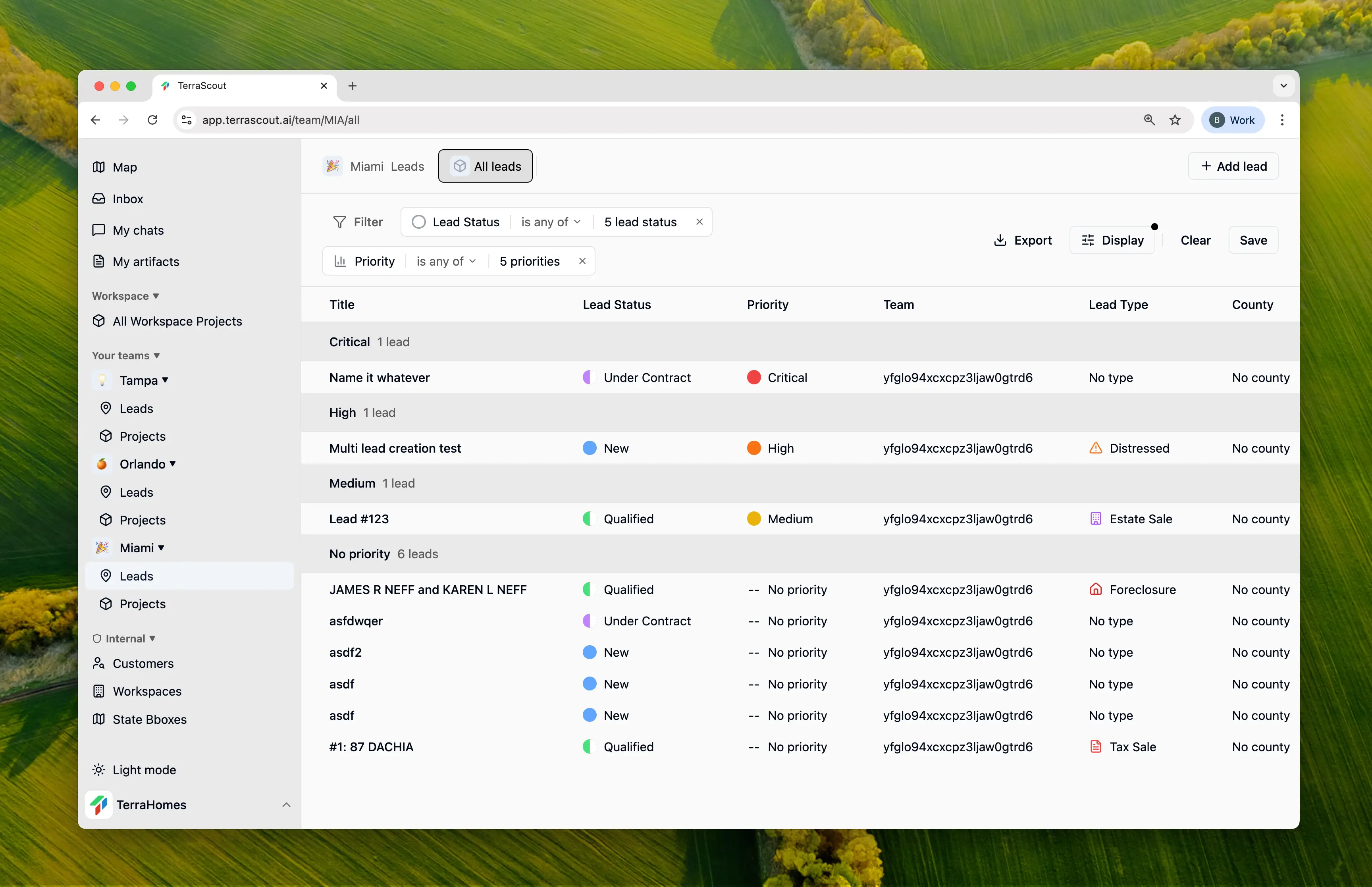 Ploti's filtering system helps you quickly find the leads you need, whether you're managing a dozen opportunities or hundreds.
## Adding Filters
1. Click the **Filter** button in your leads view
2. Select a field to filter by
3. Choose an operator and value(s)
4. Filter is applied immediately
Add multiple filters to narrow results further.
## What You Can Filter By
* **Status & Priority** — Find leads at specific pipeline stages or priority levels
* **Source & Type** — Filter by how you found the lead or what kind of deal it is
* **Location** — State, county, or city
* **People** — Who's assigned, which team, which project
* **Dates** — Contact date, expected close, contract date, closing date
* **Search** — Find leads by title
## Combining Filters
* **Multiple filters** use AND logic—all conditions must match
* **Multiple values** in one filter use OR logic—any value can match
**Example:**
* Status is "Qualified" AND Priority is any of "High, Critical"
* Shows all qualified leads that are either high priority or critical
## Grouping Leads
Beyond filtering, group your leads by:
* **Status** - See pipeline stages
* **Priority** - Focus on what matters
* **Assigned To** - View by team member
* **Team** - Organize by team
* **No Grouping** - Flat list
## Sorting
Sort your filtered results by:
* Any visible column
* Ascending or descending
* Default: Most recently updated
## Saving Views
Create custom views to save your filter combinations:
1. Set up your filters
2. Click **Save View**
3. Name your view
4. Access it anytime from the views menu
Common saved views:
* "My Active Leads" - Assigned to me, not closed
* "Hot Opportunities" - Critical/High priority, Qualified+
* "Closing This Month" - Expected close in current month
* "Needs Follow-up" - Contacted, no activity in 7 days
## Display Settings
Customize which columns appear:
1. Click the **Display** settings
2. Toggle columns on/off
3. Reorder columns as needed
4. Save as default for this view
## Tips for Effective Filtering
Begin with one or two filters and add more as needed.
Create saved views for filters you use repeatedly.
Find leads needing attention with date-based filters.
Filter first, then group to see patterns in results.
Ploti's filtering system helps you quickly find the leads you need, whether you're managing a dozen opportunities or hundreds.
## Adding Filters
1. Click the **Filter** button in your leads view
2. Select a field to filter by
3. Choose an operator and value(s)
4. Filter is applied immediately
Add multiple filters to narrow results further.
## What You Can Filter By
* **Status & Priority** — Find leads at specific pipeline stages or priority levels
* **Source & Type** — Filter by how you found the lead or what kind of deal it is
* **Location** — State, county, or city
* **People** — Who's assigned, which team, which project
* **Dates** — Contact date, expected close, contract date, closing date
* **Search** — Find leads by title
## Combining Filters
* **Multiple filters** use AND logic—all conditions must match
* **Multiple values** in one filter use OR logic—any value can match
**Example:**
* Status is "Qualified" AND Priority is any of "High, Critical"
* Shows all qualified leads that are either high priority or critical
## Grouping Leads
Beyond filtering, group your leads by:
* **Status** - See pipeline stages
* **Priority** - Focus on what matters
* **Assigned To** - View by team member
* **Team** - Organize by team
* **No Grouping** - Flat list
## Sorting
Sort your filtered results by:
* Any visible column
* Ascending or descending
* Default: Most recently updated
## Saving Views
Create custom views to save your filter combinations:
1. Set up your filters
2. Click **Save View**
3. Name your view
4. Access it anytime from the views menu
Common saved views:
* "My Active Leads" - Assigned to me, not closed
* "Hot Opportunities" - Critical/High priority, Qualified+
* "Closing This Month" - Expected close in current month
* "Needs Follow-up" - Contacted, no activity in 7 days
## Display Settings
Customize which columns appear:
1. Click the **Display** settings
2. Toggle columns on/off
3. Reorder columns as needed
4. Save as default for this view
## Tips for Effective Filtering
Begin with one or two filters and add more as needed.
Create saved views for filters you use repeatedly.
Find leads needing attention with date-based filters.
Filter first, then group to see patterns in results.