> ## Documentation Index
> Fetch the complete documentation index at: https://terrascout.ai/docs/llms.txt
> Use this file to discover all available pages before exploring further.
# Creating a Lead
> How to create and set up leads in Ploti
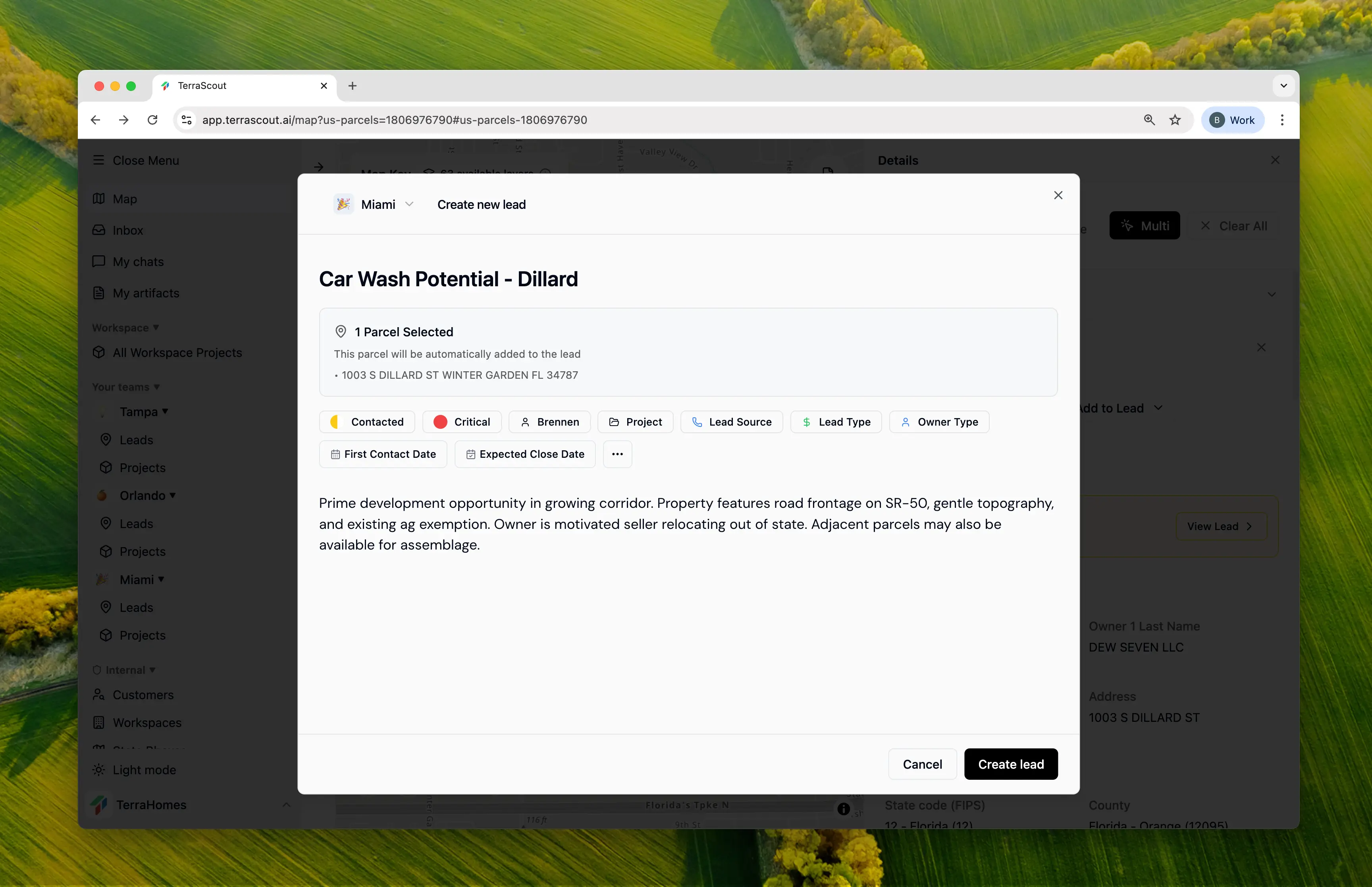 Create leads to start tracking land acquisition opportunities. You can create leads from the map, from existing parcels, or directly from your leads list.
## Creating a Lead from the Map
The most common way to create a lead:
1. Navigate to the map and find a property
2. Click on a parcel to select it
3. Click **Create Lead** in the parcel popup
4. Fill in the lead details
5. Submit to create the lead
Multiple parcels can be selected to create a single lead with multiple properties.
## Required Fields
* **Title** - Give your lead a descriptive name
* **Team** - Assign to a team (auto-selected if you only have one)
## What You Can Add
When creating a lead, you can fill in as much or as little as you want. Here's what's available:
* **Title & Description** — Name your lead and add notes
* **Status** — Track where it is in your pipeline (New, Contacted, Negotiating, etc.)
* **Priority** — Flag important opportunities
* **Source & Type** — Record how you found it and what kind of deal it is
* **Owner Type** — Individual, LLC, Trust, etc.
* **Financials** — Asking price, your estimated value, and offer amount
* **Key Dates** — First contact, expected close, contract date, closing date
* **Assignment** — Who's responsible for this lead
* **Project** — Optionally link it to a project
## Associated Parcels
When creating a lead from the map, selected parcels are automatically associated. The dialog shows:
* Number of parcels
* Total acreage
* Parcel previews
You can add or remove parcels after creation from the lead detail view.
## After Creation
Once created:
* You're automatically subscribed to the lead
* If assigned, the assignee is also subscribed
* The lead appears in your leads list and any associated project
* Activity tracking begins immediately
## Tips for Effective Leads
Use clear titles like "123 Main St - 5 Acre Residential" rather than generic names.
Always record how you found the lead to track which channels perform best.
Include any research or context in the description while it's fresh.
Prioritize leads immediately so your team knows what to focus on.
Create leads to start tracking land acquisition opportunities. You can create leads from the map, from existing parcels, or directly from your leads list.
## Creating a Lead from the Map
The most common way to create a lead:
1. Navigate to the map and find a property
2. Click on a parcel to select it
3. Click **Create Lead** in the parcel popup
4. Fill in the lead details
5. Submit to create the lead
Multiple parcels can be selected to create a single lead with multiple properties.
## Required Fields
* **Title** - Give your lead a descriptive name
* **Team** - Assign to a team (auto-selected if you only have one)
## What You Can Add
When creating a lead, you can fill in as much or as little as you want. Here's what's available:
* **Title & Description** — Name your lead and add notes
* **Status** — Track where it is in your pipeline (New, Contacted, Negotiating, etc.)
* **Priority** — Flag important opportunities
* **Source & Type** — Record how you found it and what kind of deal it is
* **Owner Type** — Individual, LLC, Trust, etc.
* **Financials** — Asking price, your estimated value, and offer amount
* **Key Dates** — First contact, expected close, contract date, closing date
* **Assignment** — Who's responsible for this lead
* **Project** — Optionally link it to a project
## Associated Parcels
When creating a lead from the map, selected parcels are automatically associated. The dialog shows:
* Number of parcels
* Total acreage
* Parcel previews
You can add or remove parcels after creation from the lead detail view.
## After Creation
Once created:
* You're automatically subscribed to the lead
* If assigned, the assignee is also subscribed
* The lead appears in your leads list and any associated project
* Activity tracking begins immediately
## Tips for Effective Leads
Use clear titles like "123 Main St - 5 Acre Residential" rather than generic names.
Always record how you found the lead to track which channels perform best.
Include any research or context in the description while it's fresh.
Prioritize leads immediately so your team knows what to focus on.