> ## Documentation Index
> Fetch the complete documentation index at: https://terrascout.ai/docs/llms.txt
> Use this file to discover all available pages before exploring further.
# Activity & Collaboration
> Track changes and work together on leads
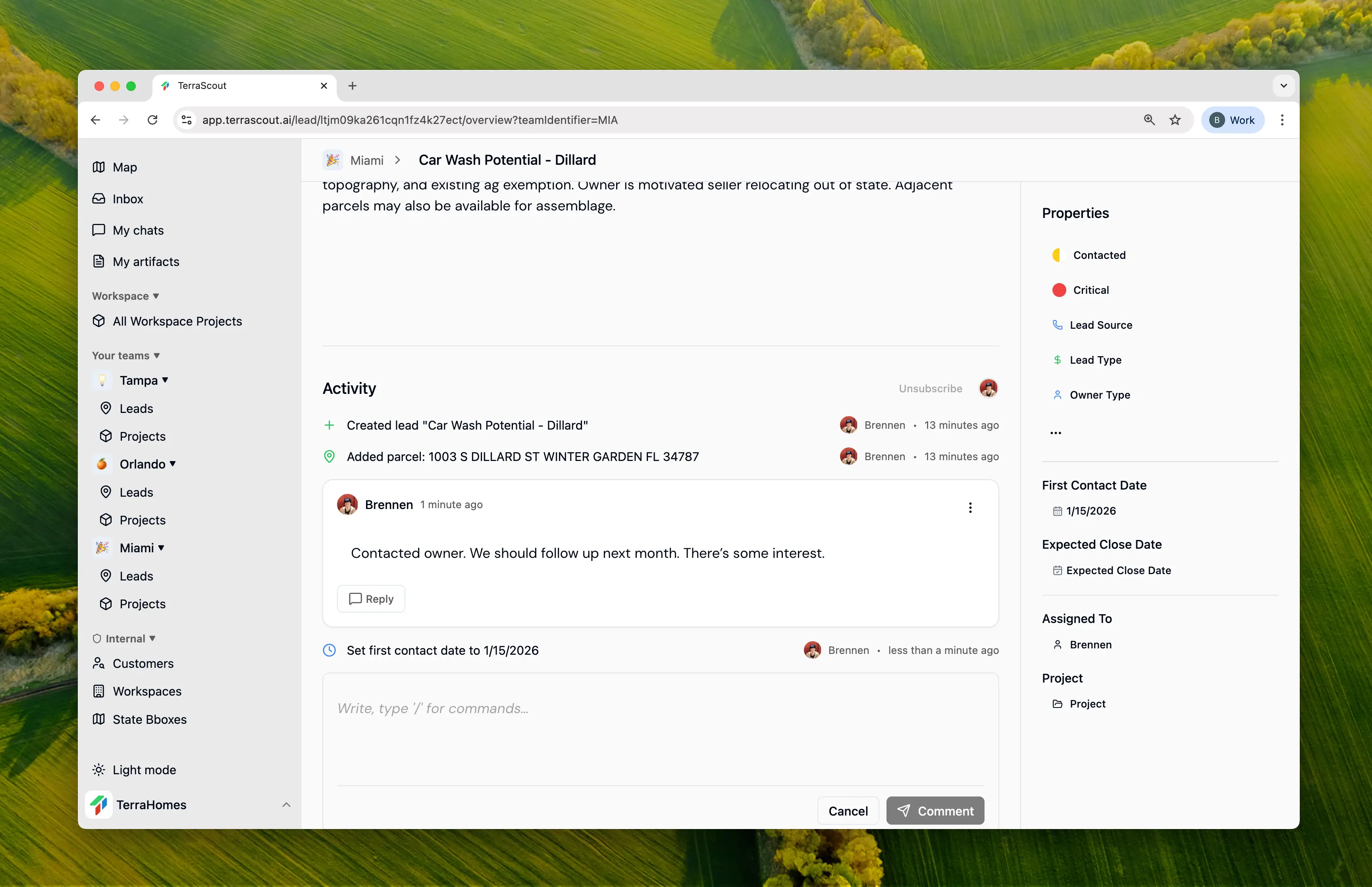 Ploti automatically tracks all activity on your leads and provides collaboration tools to keep your team aligned.
## Activity Feed
Every lead has an activity feed showing its complete history. You'll see:
* Status and priority changes
* Field updates (financials, dates, etc.)
* Parcels added or removed
* Assignment changes
* Comments and replies
Each entry shows who made the change, what changed, and when.
## Comments & Discussions
Add comments to leads to document conversations, share research, or coordinate with teammates.
### Adding Comments
1. Open the lead
2. Navigate to the **Comments** section
3. Type your comment
4. Click **Post**
Comments support rich text formatting for clear communication.
### Threaded Replies
Reply to specific comments to keep discussions organized:
1. Click **Reply** on any comment
2. Type your response
3. Reply appears nested under the original comment
### Editing & Deleting
* Edit your own comments anytime
* Delete your own comments if needed
* Edits and deletions are tracked in activity
## Lead Assignment
Assign leads to team members for accountability:
1. Open the lead
2. Click the **Assigned To** field
3. Select a team member
4. The assignee is automatically subscribed to the lead
### Finding Your Leads
Filter to see leads assigned to you:
1. Add filter: **Assigned To** is **Me**
2. View all your active opportunities
## Subscriptions
Subscribers receive notifications about lead activity.
### Automatic Subscriptions
* **Lead creator** - Always subscribed
* **Assigned member** - Subscribed when assigned
### Manual Subscriptions
Team members can subscribe to any lead they want to follow:
1. Open the lead
2. Click **Subscribe**
3. Receive notifications for all activity
To unsubscribe:
1. Open the lead
2. Click **Unsubscribe**
### What Triggers Notifications
Subscribers are notified of:
* Status changes
* Priority changes
* New comments
* Assignment changes
* Significant field updates
## Collaboration Best Practices
Add comments after owner calls to create a record of discussions.
Mention relevant details in comments so the full story is captured.
Every lead should have an owner responsible for moving it forward.
Subscribe to leads you need to monitor, even if not assigned.
## Team Visibility
All team members with access can view the complete activity feed, read comments, and see the full lead history. This keeps everyone on the same page.
Ploti automatically tracks all activity on your leads and provides collaboration tools to keep your team aligned.
## Activity Feed
Every lead has an activity feed showing its complete history. You'll see:
* Status and priority changes
* Field updates (financials, dates, etc.)
* Parcels added or removed
* Assignment changes
* Comments and replies
Each entry shows who made the change, what changed, and when.
## Comments & Discussions
Add comments to leads to document conversations, share research, or coordinate with teammates.
### Adding Comments
1. Open the lead
2. Navigate to the **Comments** section
3. Type your comment
4. Click **Post**
Comments support rich text formatting for clear communication.
### Threaded Replies
Reply to specific comments to keep discussions organized:
1. Click **Reply** on any comment
2. Type your response
3. Reply appears nested under the original comment
### Editing & Deleting
* Edit your own comments anytime
* Delete your own comments if needed
* Edits and deletions are tracked in activity
## Lead Assignment
Assign leads to team members for accountability:
1. Open the lead
2. Click the **Assigned To** field
3. Select a team member
4. The assignee is automatically subscribed to the lead
### Finding Your Leads
Filter to see leads assigned to you:
1. Add filter: **Assigned To** is **Me**
2. View all your active opportunities
## Subscriptions
Subscribers receive notifications about lead activity.
### Automatic Subscriptions
* **Lead creator** - Always subscribed
* **Assigned member** - Subscribed when assigned
### Manual Subscriptions
Team members can subscribe to any lead they want to follow:
1. Open the lead
2. Click **Subscribe**
3. Receive notifications for all activity
To unsubscribe:
1. Open the lead
2. Click **Unsubscribe**
### What Triggers Notifications
Subscribers are notified of:
* Status changes
* Priority changes
* New comments
* Assignment changes
* Significant field updates
## Collaboration Best Practices
Add comments after owner calls to create a record of discussions.
Mention relevant details in comments so the full story is captured.
Every lead should have an owner responsible for moving it forward.
Subscribe to leads you need to monitor, even if not assigned.
## Team Visibility
All team members with access can view the complete activity feed, read comments, and see the full lead history. This keeps everyone on the same page.