> ## Documentation Index
> Fetch the complete documentation index at: https://terrascout.ai/docs/llms.txt
> Use this file to discover all available pages before exploring further.
# Account Setup
> Set up your account, workspace, and team
 This guide walks you through setting up your Ploti account.
## Create Your Account
Go to [app.terrascout.ai](https://app.terrascout.ai) and sign up using either:
* **Google**: One-click sign up with your Google account
* **Email**: Enter your email and we'll send you a magic link
### What's a Magic Link?
A magic link is a secure, one-time login link sent to your email. No password required. Just click the link in your inbox and you're signed in. Each link expires after a short time and can only be used once.
## Create Your Workspace
After signing in, you'll create your workspace. A workspace is your organization's home in Ploti.
**What belongs to a workspace:**
* All billing and subscription management
* All members of your organization
* All projects, leads, and saved data
Think of your workspace as your company. If you're a national home builder, your workspace would be your company name.
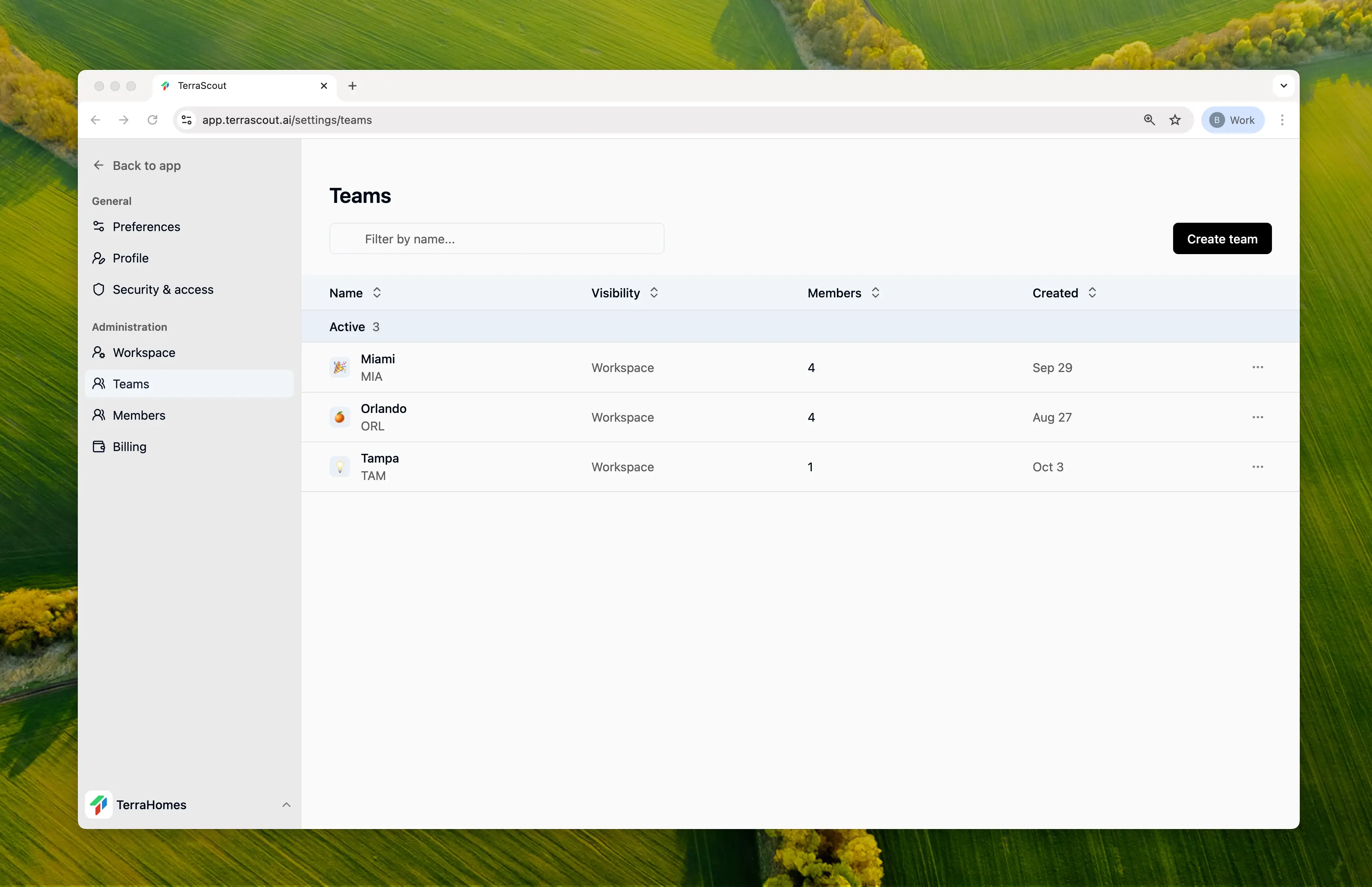
## Create Teams
Teams let you organize people within your workspace into groups. This is useful for:
* Regional offices
* Different departments
* Project-based groups
**Example:** A national home builder might have their company as the workspace, with teams for each market: Orlando, Tampa, Miami, Atlanta.
Team members can be assigned to multiple teams, and you can control access and visibility at the team level.
Projects and leads can be assigned to a specific team or left unassigned. Unassigned projects and leads belong to the workspace as a whole, visible to everyone.
## Invite Members
Once your workspace and teams are set up, invite your colleagues:
1. Go to workspace settings
2. Click **Invite Members**
3. Enter their email addresses
4. Assign them to teams
They'll receive an email with a link to join your workspace.
## What's Next?
See example workflows for finding land opportunities
This guide walks you through setting up your Ploti account.
## Create Your Account
Go to [app.terrascout.ai](https://app.terrascout.ai) and sign up using either:
* **Google**: One-click sign up with your Google account
* **Email**: Enter your email and we'll send you a magic link
### What's a Magic Link?
A magic link is a secure, one-time login link sent to your email. No password required. Just click the link in your inbox and you're signed in. Each link expires after a short time and can only be used once.
## Create Your Workspace
After signing in, you'll create your workspace. A workspace is your organization's home in Ploti.
**What belongs to a workspace:**
* All billing and subscription management
* All members of your organization
* All projects, leads, and saved data
Think of your workspace as your company. If you're a national home builder, your workspace would be your company name.
## Create Teams
Teams let you organize people within your workspace into groups. This is useful for:
* Regional offices
* Different departments
* Project-based groups
**Example:** A national home builder might have their company as the workspace, with teams for each market: Orlando, Tampa, Miami, Atlanta.
Team members can be assigned to multiple teams, and you can control access and visibility at the team level.
Projects and leads can be assigned to a specific team or left unassigned. Unassigned projects and leads belong to the workspace as a whole, visible to everyone.
## Invite Members
Once your workspace and teams are set up, invite your colleagues:
1. Go to workspace settings
2. Click **Invite Members**
3. Enter their email addresses
4. Assign them to teams
They'll receive an email with a link to join your workspace.
## What's Next?
See example workflows for finding land opportunities