> ## Documentation Index
> Fetch the complete documentation index at: https://terrascout.ai/docs/llms.txt
> Use this file to discover all available pages before exploring further.
# Notifications
> Stay informed with in-app and email notifications
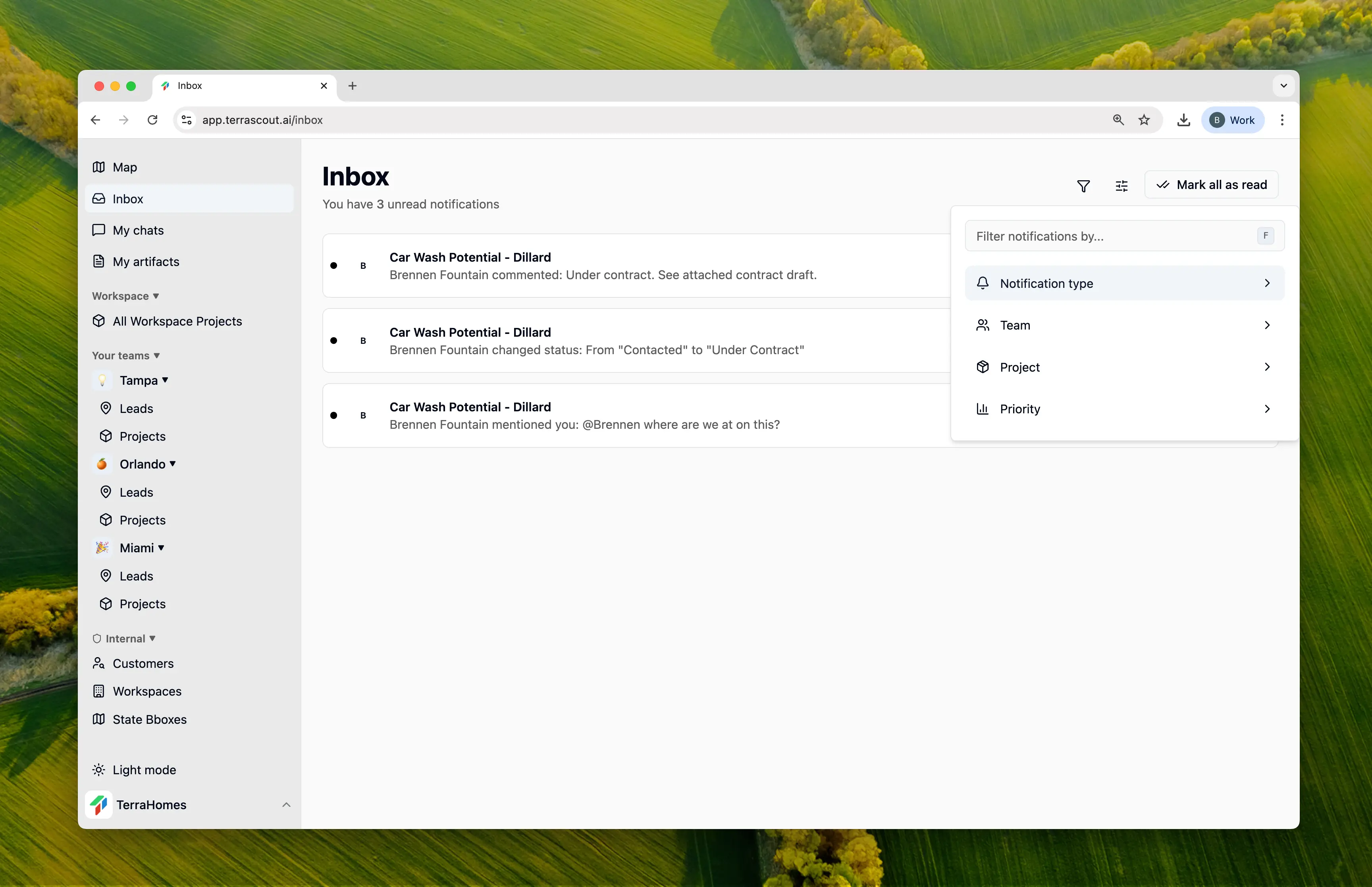 Ploti keeps you informed about activity on your deals without overwhelming you. Get notified when things change on leads and projects you care about—in the app and via email.
## How Notifications Work
When something happens on a lead or project you're subscribed to, Ploti:
1. Creates an **in-app notification** visible in your Inbox
2. Batches activity over 5 minutes, then sends a single **email digest** (if enabled)
This approach keeps you informed without flooding your inbox with individual emails for every change.
## What Triggers Notifications
You'll get notified about:
* **Assignments** — When you're assigned to a lead or added to a project
* **Status changes** — When a lead or project status updates
* **Comments** — New comments, replies, and mentions
* **Field updates** — Changes to priority, dates, financials, etc.
## Subscriptions
You only receive notifications for leads and projects you're **subscribed** to. This keeps your inbox focused on what matters to you.
### Automatic Subscriptions
You're automatically subscribed when you:
* **Create** a lead or project
* **Are assigned** to a lead
* **Are added** as a project member
* **Are mentioned** in a comment
### Manual Subscriptions
Subscribe to any lead or project you want to follow:
1. Open the lead or project
2. Click the **Subscribe** button or find the subscribers dropdown
3. Toggle your subscription on
To unsubscribe, toggle it off. You'll stop receiving notifications for that entity.
### Managing Subscribers
If you have permission, you can manage who's subscribed:
1. Open the subscribers dropdown
2. See all current subscribers
3. Add or remove team members
4. Assigned users cannot be unsubscribed (they're always notified)
## In-App Notifications
### The Inbox
Access your notifications from the **Inbox** in the main navigation. The Inbox shows:
* All notifications from the last 30 days
* Unread notifications highlighted with a blue indicator
* Who triggered the notification (with avatar)
* What happened (status change, comment, etc.)
* Preview of the content
* When it happened
Click any notification to:
* Mark it as read
* Navigate directly to the lead or project
### Filtering Notifications
Filter your Inbox by type (mentions, assignments, comments), by team or project, or by priority. You can also show/hide read notifications and change the sort order.
### Mark as Read
* **Individual**: Click a notification to mark it as read
* **Bulk**: Use "Mark all as read" to clear your unread count
## Email Notifications
Ploti keeps you informed about activity on your deals without overwhelming you. Get notified when things change on leads and projects you care about—in the app and via email.
## How Notifications Work
When something happens on a lead or project you're subscribed to, Ploti:
1. Creates an **in-app notification** visible in your Inbox
2. Batches activity over 5 minutes, then sends a single **email digest** (if enabled)
This approach keeps you informed without flooding your inbox with individual emails for every change.
## What Triggers Notifications
You'll get notified about:
* **Assignments** — When you're assigned to a lead or added to a project
* **Status changes** — When a lead or project status updates
* **Comments** — New comments, replies, and mentions
* **Field updates** — Changes to priority, dates, financials, etc.
## Subscriptions
You only receive notifications for leads and projects you're **subscribed** to. This keeps your inbox focused on what matters to you.
### Automatic Subscriptions
You're automatically subscribed when you:
* **Create** a lead or project
* **Are assigned** to a lead
* **Are added** as a project member
* **Are mentioned** in a comment
### Manual Subscriptions
Subscribe to any lead or project you want to follow:
1. Open the lead or project
2. Click the **Subscribe** button or find the subscribers dropdown
3. Toggle your subscription on
To unsubscribe, toggle it off. You'll stop receiving notifications for that entity.
### Managing Subscribers
If you have permission, you can manage who's subscribed:
1. Open the subscribers dropdown
2. See all current subscribers
3. Add or remove team members
4. Assigned users cannot be unsubscribed (they're always notified)
## In-App Notifications
### The Inbox
Access your notifications from the **Inbox** in the main navigation. The Inbox shows:
* All notifications from the last 30 days
* Unread notifications highlighted with a blue indicator
* Who triggered the notification (with avatar)
* What happened (status change, comment, etc.)
* Preview of the content
* When it happened
Click any notification to:
* Mark it as read
* Navigate directly to the lead or project
### Filtering Notifications
Filter your Inbox by type (mentions, assignments, comments), by team or project, or by priority. You can also show/hide read notifications and change the sort order.
### Mark as Read
* **Individual**: Click a notification to mark it as read
* **Bulk**: Use "Mark all as read" to clear your unread count
## Email Notifications
 ### Smart Batching
Ploti batches notifications to avoid email overload:
1. Activity happens on a lead or project
2. System waits 5 minutes to collect related notifications
3. One email is sent with all updates bundled together
This means if there's a flurry of activity—multiple comments, status changes, etc.—you get one organized email instead of ten separate ones.
### Email Content
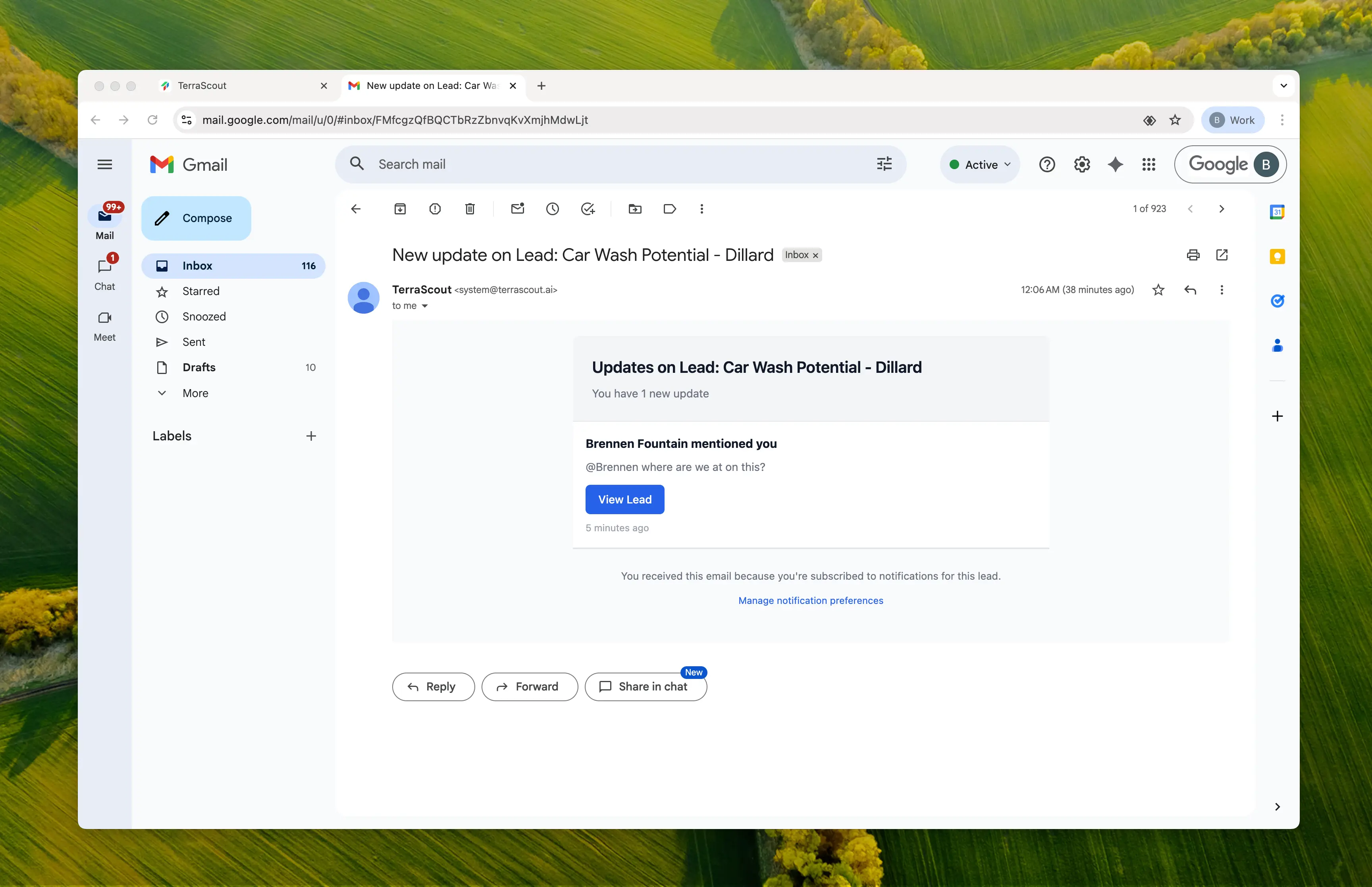
Each email includes:
* **Subject**: Clear indication of the entity and number of updates
* **Entity header**: Lead or project name
* **Activity list**: Each notification with who, what, and when
* **Action buttons**: Direct links to view the lead or project
* **Preferences link**: Quick access to manage your notification settings
## Email Preferences
Control which notifications you receive via email from **Settings → Preferences**. You can toggle each notification type on or off:
* Assignments
* Status changes
* Comments
* Field updates
These settings only affect emails—you'll still see all notifications in your Inbox.
## Best Practices
Subscribe to deals you need to monitor, even if you're not assigned. Unsubscribe from deals you no longer need to follow.
Mention team members in comments to notify them directly and auto-subscribe them to the conversation.
Turn off notification types you don't need via email. You'll still see them in-app.
Make a habit of reviewing your Inbox to stay on top of deal activity.
Notifications ensure you never miss important updates while respecting your attention. Subscribe to what matters, configure your preferences, and let Ploti keep you informed.
### Smart Batching
Ploti batches notifications to avoid email overload:
1. Activity happens on a lead or project
2. System waits 5 minutes to collect related notifications
3. One email is sent with all updates bundled together
This means if there's a flurry of activity—multiple comments, status changes, etc.—you get one organized email instead of ten separate ones.
### Email Content
Each email includes:
* **Subject**: Clear indication of the entity and number of updates
* **Entity header**: Lead or project name
* **Activity list**: Each notification with who, what, and when
* **Action buttons**: Direct links to view the lead or project
* **Preferences link**: Quick access to manage your notification settings
## Email Preferences
Control which notifications you receive via email from **Settings → Preferences**. You can toggle each notification type on or off:
* Assignments
* Status changes
* Comments
* Field updates
These settings only affect emails—you'll still see all notifications in your Inbox.
## Best Practices
Subscribe to deals you need to monitor, even if you're not assigned. Unsubscribe from deals you no longer need to follow.
Mention team members in comments to notify them directly and auto-subscribe them to the conversation.
Turn off notification types you don't need via email. You'll still see them in-app.
Make a habit of reviewing your Inbox to stay on top of deal activity.
Notifications ensure you never miss important updates while respecting your attention. Subscribe to what matters, configure your preferences, and let Ploti keep you informed.